
Spot Color Adjustment is a workflow action used primarily with digital print workflows. It allows users to modify the CMYK equivalents of spot colors in PDF files for more accurate or visually pleasing output.
Note: This feature is different from Ink Remapping, which is used in offset workflows.
Purpose
While some spot colors convert cleanly to CMYK, others may fall outside the gamut, especially on certain substrates. The Spot Color Adjustment (SCA) action enables you to adjust the CMYK build manually to achieve the best visual match for your specific job. These adjustments can be saved as reusable sets for future use with particular customers or substrates.
Spot Color Adjustment is especially useful when a customer provides a PDF using named spot colors that do not reproduce well on your device. By modifying the CMYK equivalent in advance, you can ensure the best color match possible before printing.
Adding the Action in Navigator Server
To add the Spot Color Adjustment action in Navigator Server:
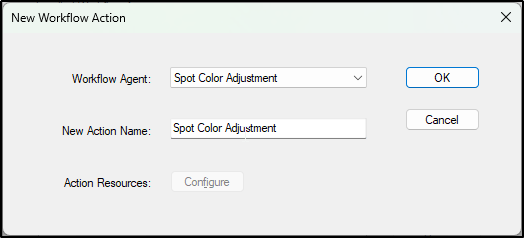
Go to Server Setup > Manage Actions.
Click New Action.
From the list of available workflow actions, select Spot Color Adjustment.
Name the action something descriptive (e.g., "Spot Color Adjustment").
Click OK to save the action.
Adding the Action to a Workflow
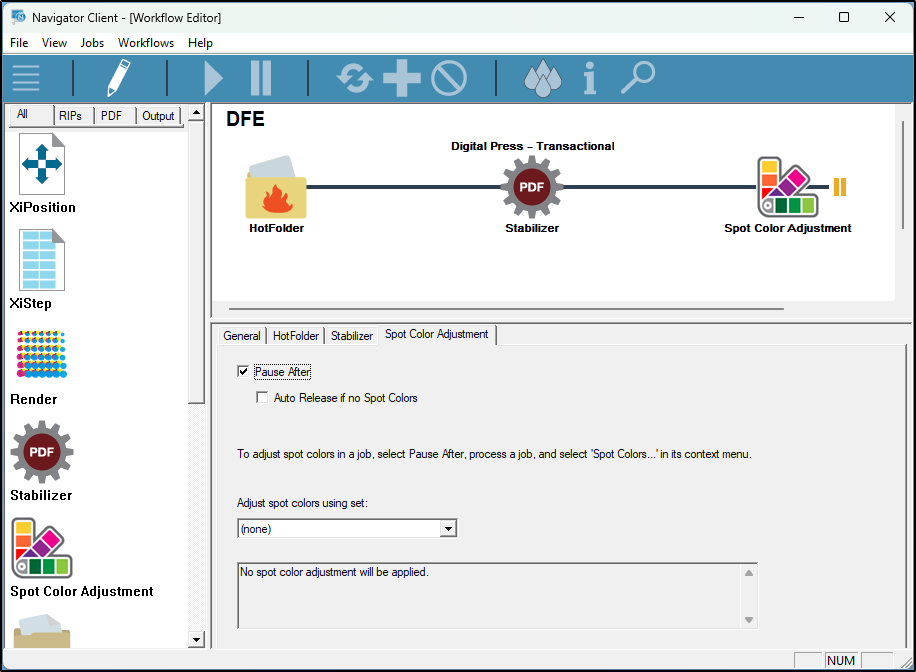
After the action is created, it will appear in the Navigator Client when building or editing workflows.
Tip: Spot Color Adjustment does not function as a standalone action. It must be used in combination with the Stabilizer action, which should come earlier in the workflow.
To function properly:
Insert the Stabilizer action before Spot Color Adjustment.
Ensure that there is a pause at or after the Spot Color Adjustment step. This allows the system to detect spot colors and give the operator an opportunity to make changes before printing.
Action Options
When configuring the action in Navigator Server:
Pause After: Inserts a pause after the adjustment action so changes can be made.
Auto Release if No Spot Colors: If the job contains no spot colors, it will automatically continue without user intervention.
Adjust Spot Colors Using Set: You may specify a named set of saved adjustments to be applied automatically.
Detecting Spot Colors in the Job
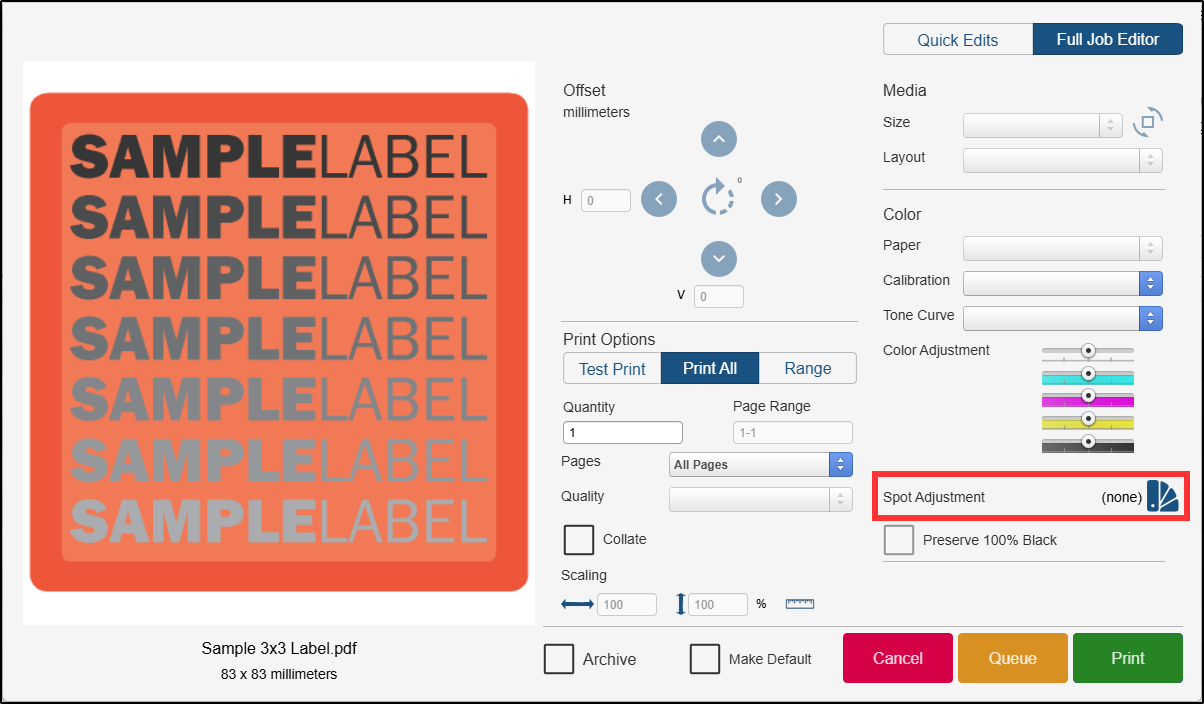
In the Full Job Editor, the Spot Adjustment button will appear automatically if spot colors are present in the PDF.
Note: This detects spot colors based on how they are defined in the PDF. It does not confirm whether the spot color is actually used on the page—only that it is referenced.
 Job Editor Indicators:
Spot colors present: Adjustment UI is visible.

No spot colors: Adjustment UI will be hidden or grayed out.

Adjustments loaded from a set: UI shows preloaded color values.

Adjusting Spot Colors in the DFE
Opening the Spot Adjustment Window
Click the swatchbook icon in the Full Job Editor to open the Spot Adjust window.
Spot colors in the PDF are listed on the left.
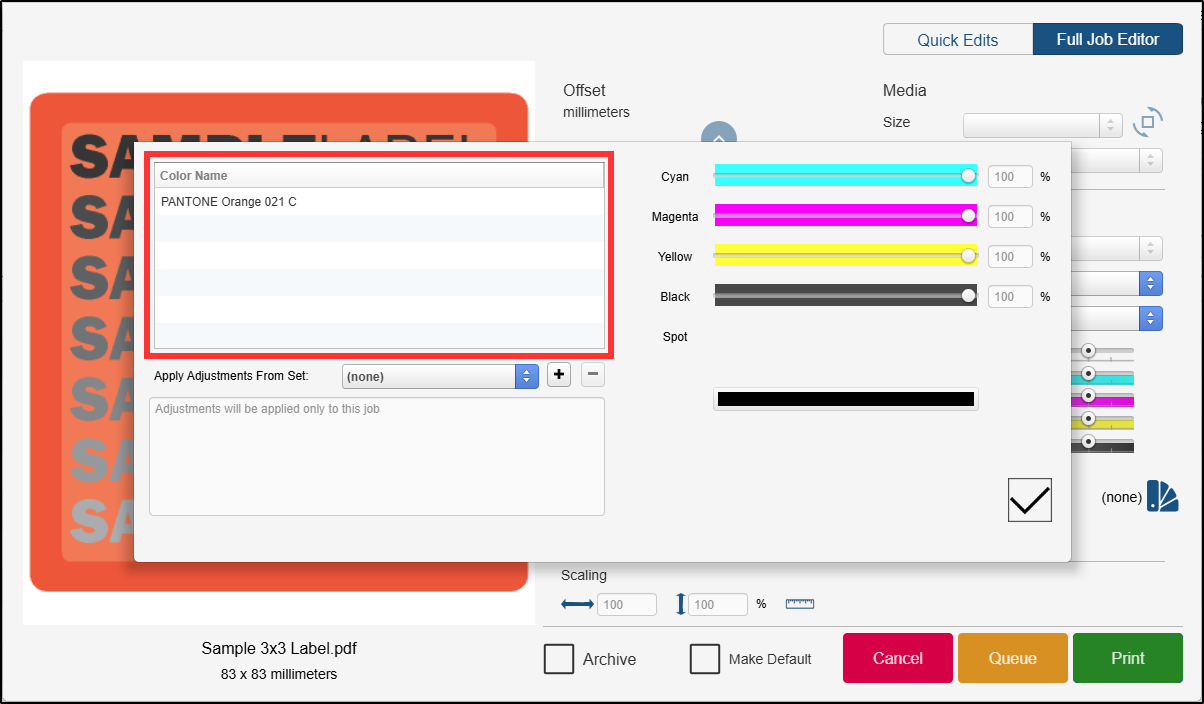
Selecting a color displays its calculated CMYK build.
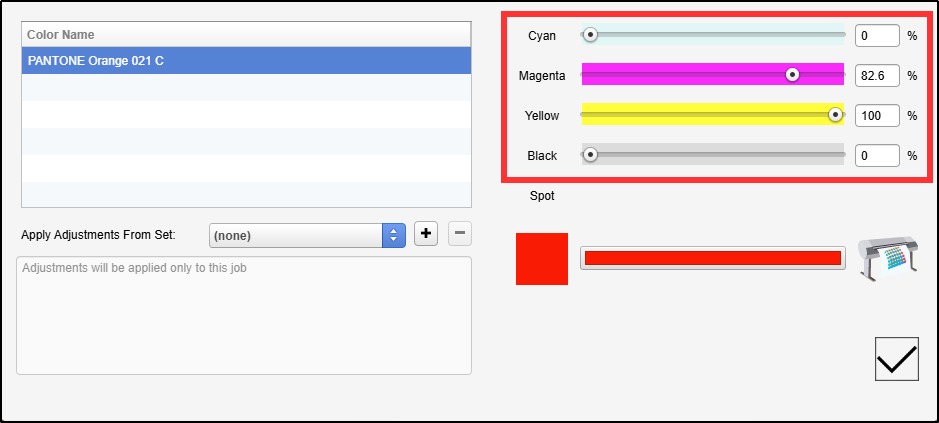
You can:
Edit the values manually
Use the color search tool to fine-tune the result visually
Save adjustments for the current job or as part of a reusable set
Managing Sets
Set pulldown menu:
(none): Adjustments apply to the current job only.
Existing Set: Apply saved adjustments.
+ / – buttons: Create or delete sets.
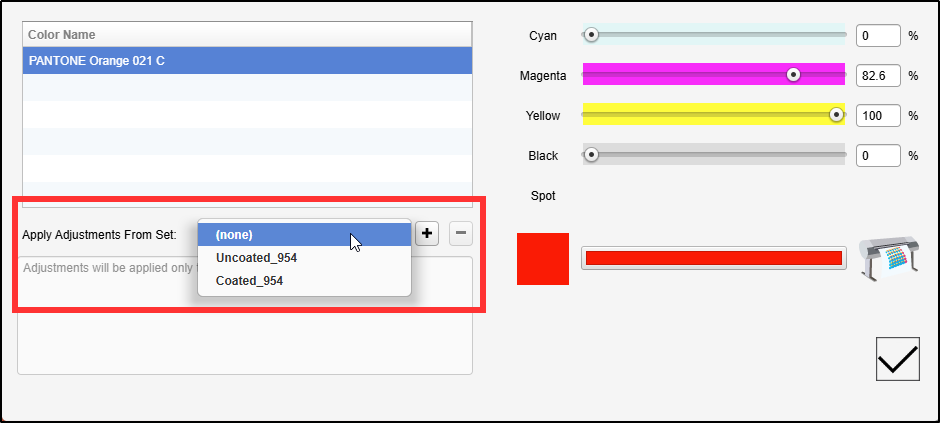
Tip: Saved sets are useful when targeting consistent color builds across different jobs, substrates, or customers.
Changing a Spot Color
Manual Entry
You may directly enter values for Cyan, Magenta, Yellow, and Black. This is useful if you already know the exact mix you need.
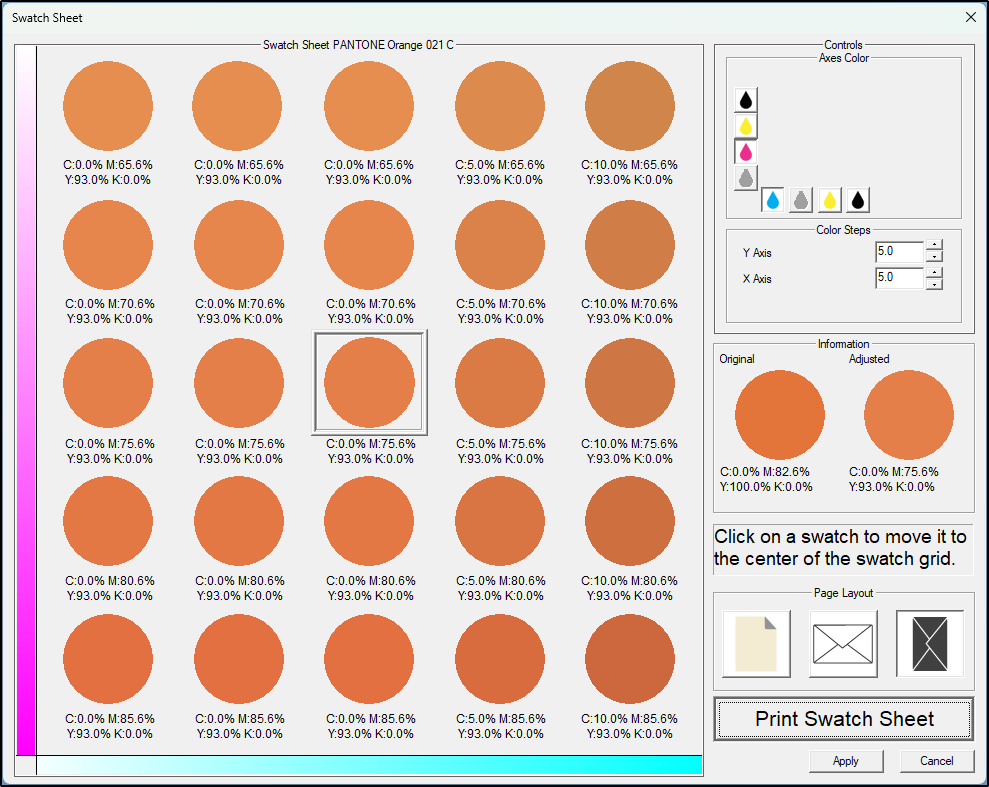
Using the Color Search Pattern Tool
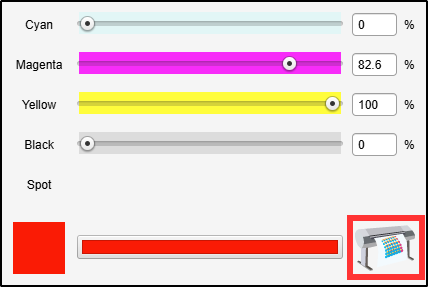
Click the printer icon next to the color to open the visual color search pattern tool. This is especially helpful when you need to find the closest match visually rather than mathematically.
Understanding the Color Search Pattern Window
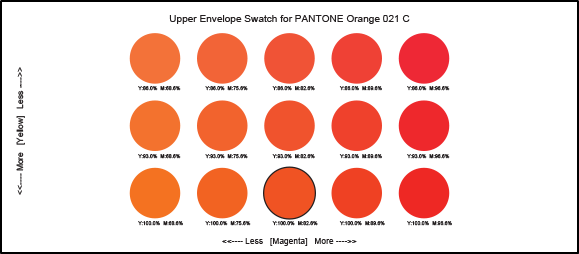
The color search window shows 25 circle swatches based on two selected process colors.
How it Works:
Two ink channels are shown at the left and bottom as gradients.
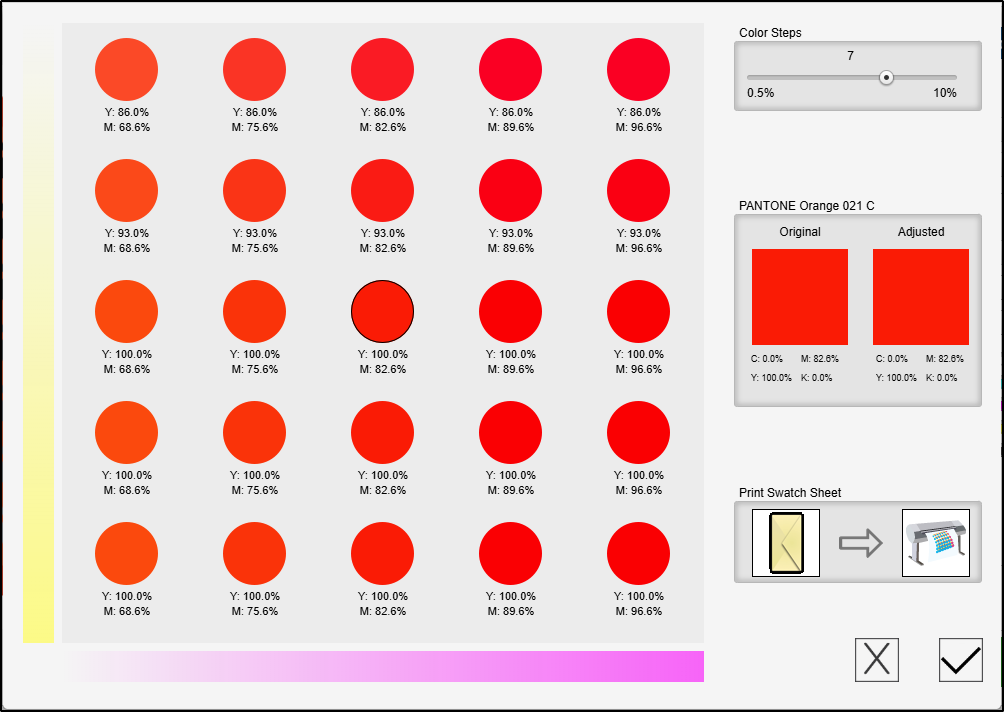
Click either gradient bar to change the colors being adjusted.
Ink drop icons indicate active color channels.
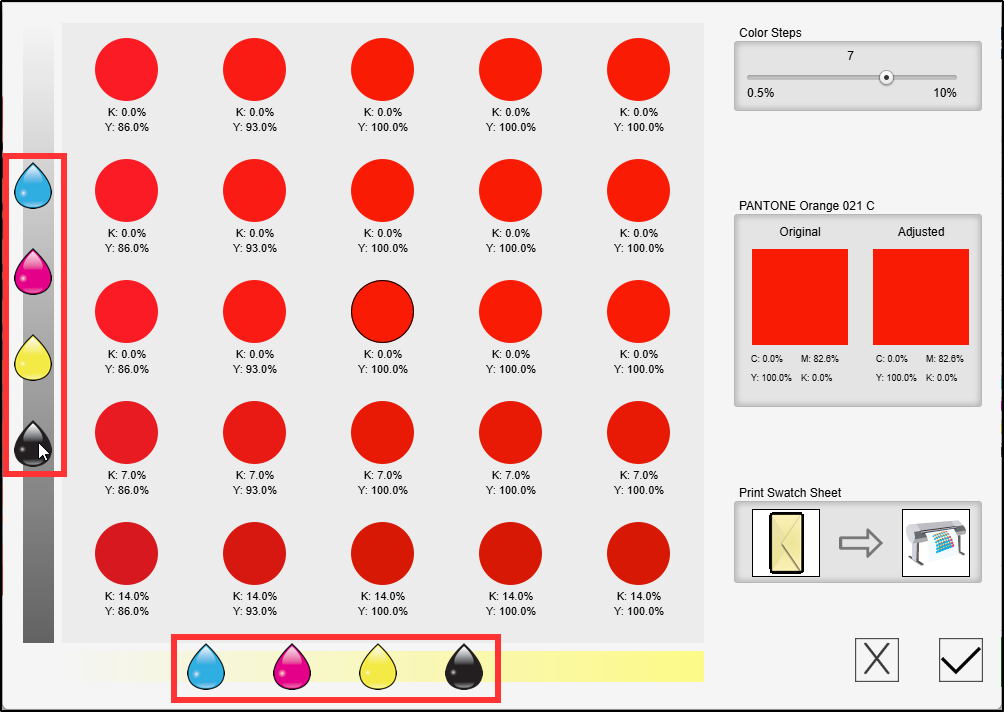
Swatches display incremental changes from the center color.
Tips:
The center swatch is the current CMYK build.
Clicking any other swatch updates the center value.
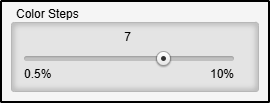
Color Steps slider: Controls the increment between each swatch (e.g., ±7%).
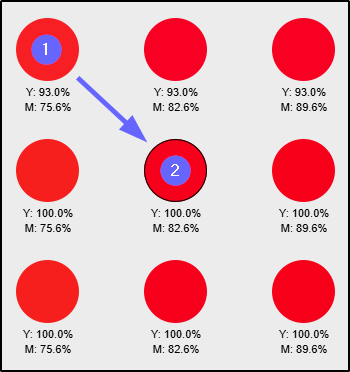
Example: If adjusting Magenta and Yellow and Yellow is at 100%, the bottom row won’t increase Yellow further, but columns will show variations in Magenta.
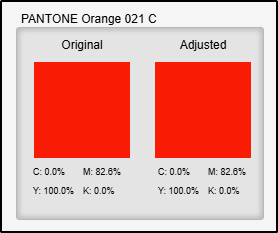
Original and adjusted CMYK values can still be seen in this window under the two large swatches to the right.
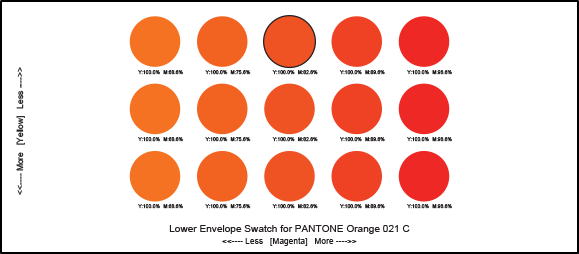
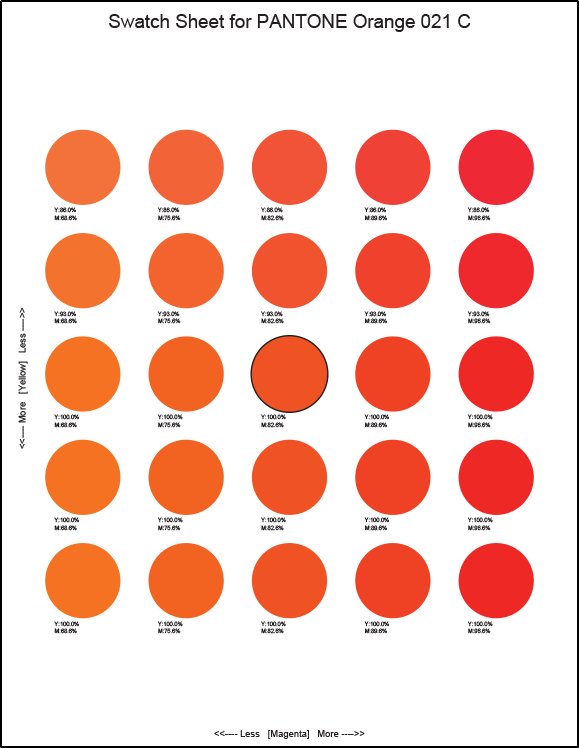
Printing a Swatch Sheet
From the color search window:
Left button: Select media size (e.g., #10 Envelope, U.S. Letter).
#10 Envelope, portrait orientation
#10 Envelope, landscape orientation
U.S. Letter
Right button: Print the swatch sheet.
#10 envelopes will produce two printed sheets to show all swatches.
#10 Sheet 1:
#10 Sheet 2:
Letter:
Finalizing Adjustments
Click the checkmark in the bottom-right corner to apply the selected color.
Adjusted colors show an arrow icon in the list.
 To clear an adjustment, click the swatch with the arrow.
Adjusting Spot Colors in the Client Application
If you're working in the client application:
Spot Color Adjustment is available if spot colors are detected in the job.
The Spot Adjustment icon in the toolbar will be enabled.
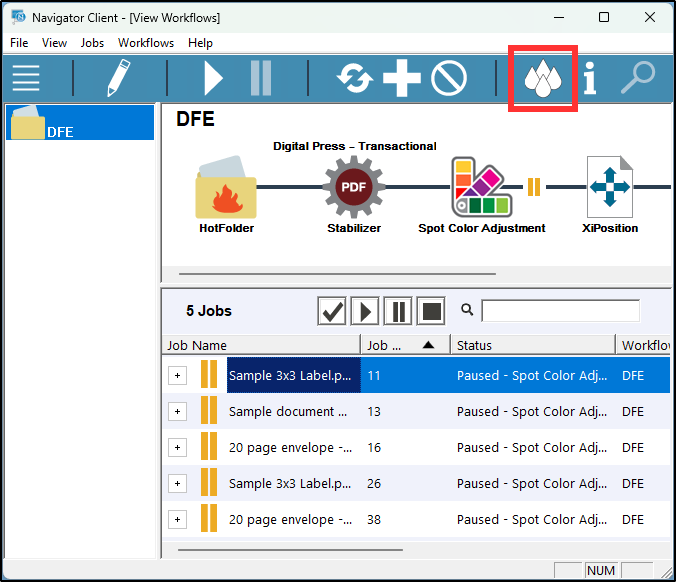
The workflow is nearly identical to the DFE interface.
Client-Only Differences:
All four process colors are shown under each swatch.
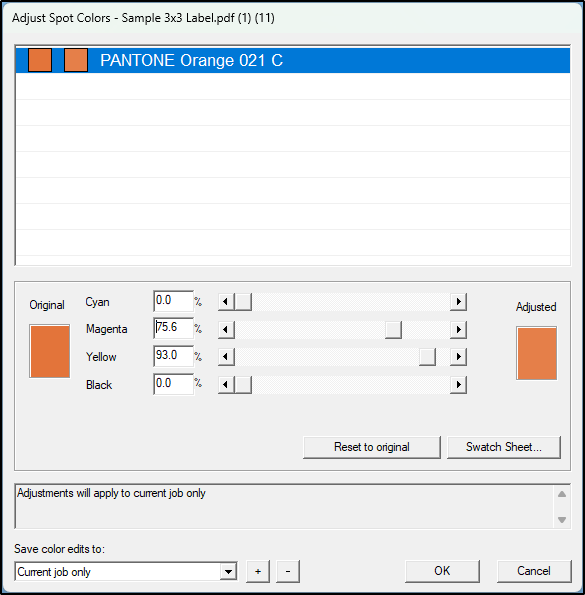
Independent sliders for row and column adjustment percentages.
Layout and navigation are slightly different:
Separate buttons for page size and orientation
Color being adjusted is shown in the graphic instead of gradient bars
Want to know more about color management?
Beginner Level: Understanding Color Management Basics
Tutorials on Color Management & Printing: This resource offers foundational knowledge on color management principles, explaining how to achieve consistent and accurate color reproduction across various devices and media.
Colour Management: Providing Effective ColourColor Management for Photographers: A Complete Guide: While geared towards photographers, this guide provides a solid introduction to color spaces, profiles, and calibration, which are essential concepts in printing. PhotoWorkout
Intermediate Level: Exploring Color Gamuts and Spot Color Matching
Color Setup for Print: 4-Color Process, Extended Gamut & Spot Colors: This article explains how extended gamut printing, which adds orange, green, and violet inks to the standard CMYK set, can achieve a closer match to traditional spot colors. It also discusses the benefits and applications of this approach in packaging. imagesmithblog.com+3Inovar Packaging Group+3Mohawk Connects+3
Understanding Spot Colors (and their Role in Digital Printing): This resource provides insights into the use of spot colors in digital printing, detailing how extended gamut methods can more accurately reproduce a wider range of colors, including many Pantone® spot colors. Mohawk Connects
Spot Colors: Their Crucial Role in the World of Printing: This blog post explores the processes of using spot colors in various printing methods, emphasizing the importance of accurate color matching and the role of spot colors in achieving brand consistency. Colorspace Guide for Printing - RGB, CMYK, Spot Colors and Pantone
Advanced Level: In-Depth Analysis of Color Management
Gamut Comparison Index: A Metric for Comparing Colour Gamuts: This technical paper introduces a method for comparing color gamuts among various printing technologies, offering a deep dive into color science. Academia
These resources should help you build a comprehensive understanding of color management, from basic principles to advanced applications in the printing industry.