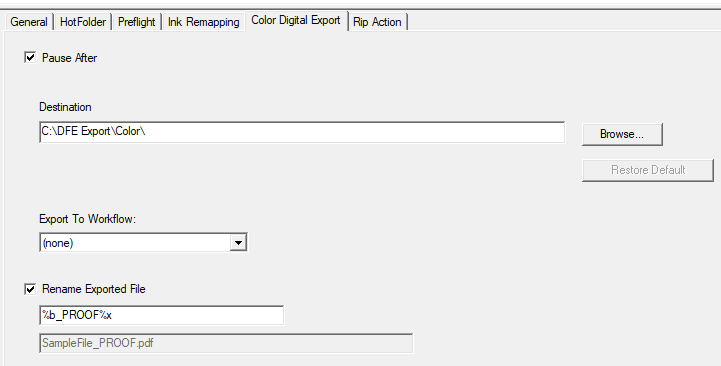
If you add an export action to your workflow you can direct a PDF to another process outside (or inside) K2. The PDF that is exported is the PDF created by the immediately preceding step.

For example, you might send a PDF to a proofer. In the case above, you are sending the preflighted, ink remapped PDF that was delivered to the Export Action.
There are two things to configure:
1. The output path
2. The name of the output file
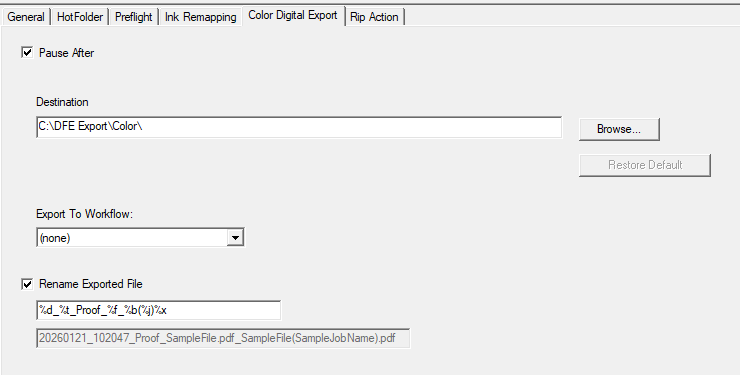
Output to another workflow or output to any folder on your network.
Perhaps the name of the PDF is important for processing or simply for recognition. You can control the name of the exported file with a naming template. In our example, above, each naming option is used so you can see the results in the feedback area, directly below the naming template. This naming template is primarily useful as an example of what is possible. We can explore some other options, below.
Valid template entries are:
%d - date as YYYYMMDD
%t - Time as HHMMSS
%n - Index, starting from 1
%b - base file name (without the 3 character extension)
%f - base file name with extension
%j - job name
%x - file extension (e.g. ".pdf")
Anything else typed directly will become a literal part of the output file name.
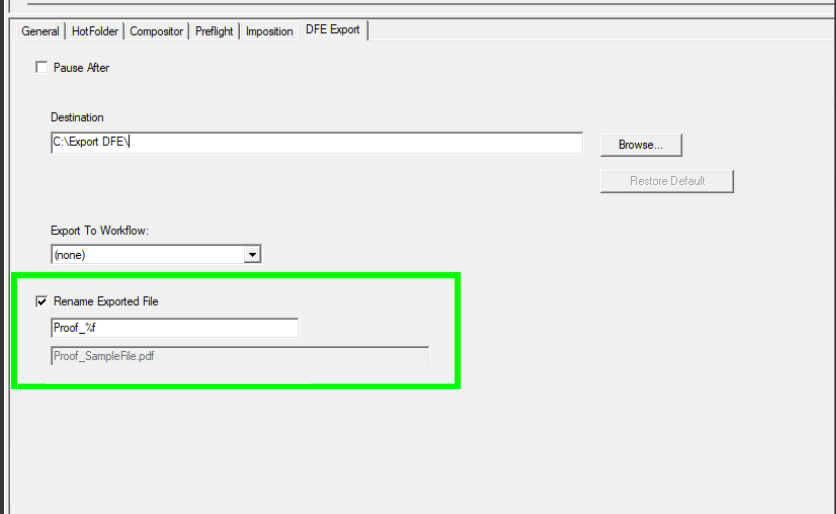
In the example above, we have chosen "Proof_%f". "Proof_" will appear exactly as typed and following that you get the entire filename with the extension. This is a simple option for outputting files for proof. The resulting file name for an input file called "SampleFile.pdf" will be "Proof_SampleFile.pdf".
Here is something a little bit more complex: template = "PDFOutput---%b---Emailproof%x
We'll get something like "PDFOutput---SampleFile---Emailproof.pdf"
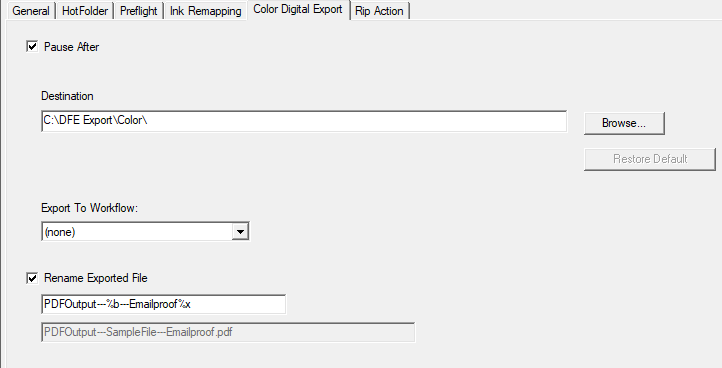
What follows is another option that splits the filename and the extension and inserts some literal text in the middle.