To view ripped, screened data, we use Proofscope. This is the application that pops up when you click on a Page Buffer file or when you click on the Viewer icon in the Client application.

Key Features
- Multiple scale factors – can zoom in and out.
- Intelligent ordering of files into jobs, pages and separations.
- Can rotate, mirror and negate the view
- Can view Traps and Rulers
- Accurate color mixing and display
PageBuffer Files
This document makes reference to PageBuffer files and it is helpful to understand what these files are and where they reside.
Harlequin RIPs generate PageBuffer files to store RIPed (bitmap) data. The RIP accesses these files when viewing or outputting jobs. Each page or flat to be output is held in one PageBuffer file, so the system stores multiple-page jobs in multiple PageBuffers. Some PageBuffer files (usually lower resolution proofing output) contain all the colors in a page or flat while others, (usually high resolution screened output) contain only a single color.
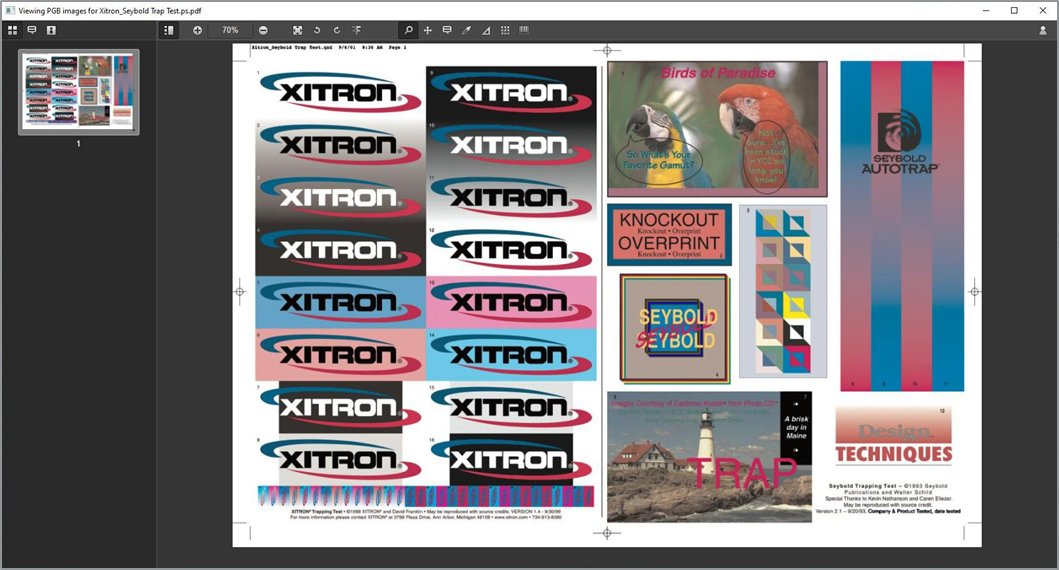
To access the Viewer, highlight a paused (or completed) job in the workflow. Right-click and select Open File from the drop-down menu, or simply click the Viewer Icon in the Client interface toolbar. The viewer window will appear, similar to the following:
Configuring the Viewer
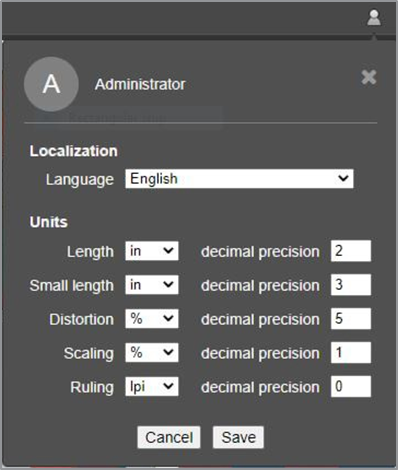
Click the Icon in the upper right corner of the viewer to set language and units of measurement. Click Save to save the settings to the user profile.
VIEWER CONFIGURATION SETTINGS
Using the Viewer
The Viewer is divided into two windows. The section on the left will display thumbnail images of each job. The section on the right will display the rendered (RIPed) image. Across the top of both windows are buttons that will be used to change the viewed image or report key information about the job. Hovering over one of the buttons will cause the viewer to display a label describing the button’s use.
VIEWER TOOL BAR

Starting from the left and moving across the toolbar, the button’s functionalities are as follows:
 Thumbnail
Shows Thumbnail images of the job being viewed. This is the default selection.
 Notes
Notes
This functionality is reserved for future product enhancements.
 Separations
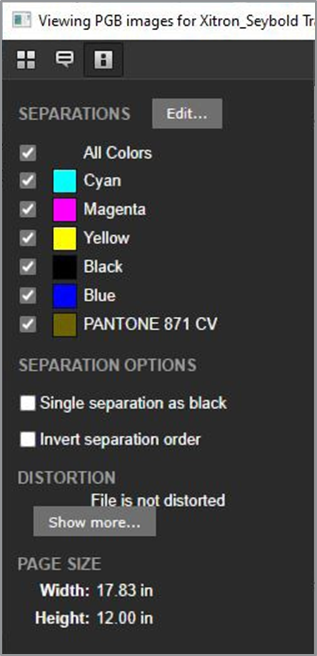
Lists all the color separations found in the job, including spot colors if they are present. By default, all separations are clicked “On” when the job is first being viewed. Un-checking the boxes next to each color will turn those colors off in the main viewing window. More information about the separations dialog can be found later in this document.
 Show Sidebar
Toggles the thumbnail window on or off.
 Zoom In
Clicking this button causes the viewer to zoom in on the image. The maximum zoom is 51,200%. The current setting is displayed as a numerical percentage just to the right of the zoom button. Typing a number here will cause the viewer to zoom to that percentage.
 Zoom Out
Clicking this button will cause the viewer to zoom out. The smallest percentage allowed is 20%.
 Fit
Fit
Clicking this button will return the image to the largest size that will fit in the viewer window.
 Rotate Left
This button causes the image to rotate 90 degrees counter-clockwise.
 Rotate Right
This button causes the image to rotate 90 degrees clockwise.
 Mirror
Clicking this button will cause the viewer to display the job as a mirror image.
 Zoom
Zoom
Clicking this button will change the cursor into a magnifying glass. By positioning the cursor over a specific spot in the job and clicking, the viewer will zoom in with that spot as the center.
 Pan
Pan
Clicking this button will change the cursor to a four-pointed arrow. Clicking on the image and dragging in any direction will pan the image in that direction.
 Notes
Notes
This functionality is reserved for future product enhancements.
 Densitometer
This button is used to take a spot density reading. The cursor will change to a plus sign and the viewer will display a window with density readings whenever the mouse is clicked on the image.
 Measure
This tool is used to measure distances between objects in displayed in the job. Click once at the first position and again at the second. The viewer will display the distance between the two points.
 Measure Halftones
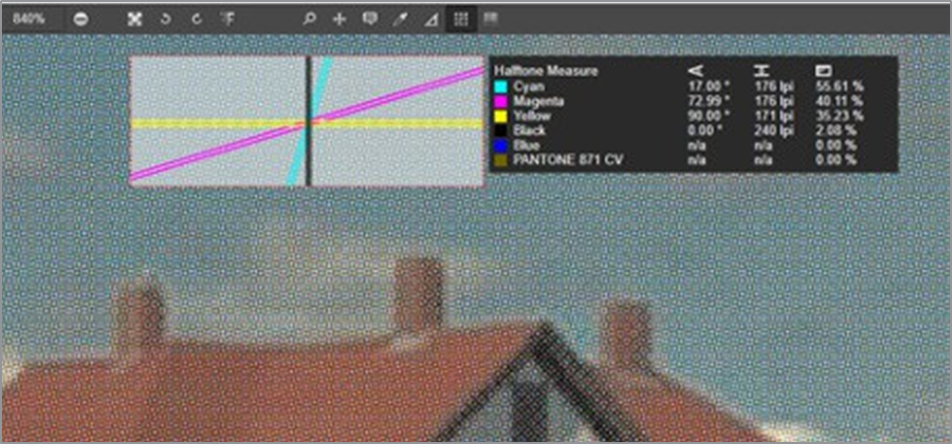
When clicked, this button turns the cursor into a plus sign, with which the user can click and drag over a halftone area. When released, the viewer will show the screen frequency, angle, and dot percentage of the halftone area being measured.
 Detect Barcodes
Use this button to check the accuracy of any bar codes embedded as part of the job. After clicking the button, use the curser to draw a rectangle over the bar code and release. The bar code scanner will read the bar code and display the barcode type, text, and character count.
The Separations Window
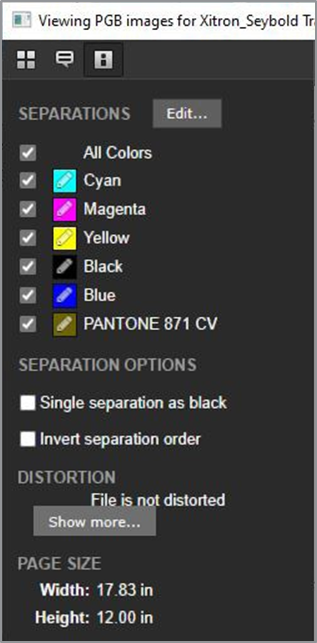
While viewing jobs, it is possible to modify how the various separations are displayed. As mentioned earlier, clicking the Separations button will present a window with all separations noted, along with a checkbox next to each. Clicking the checkboxes on or off will also turn the corresponding separations on and off in the display. An example can be seen below.
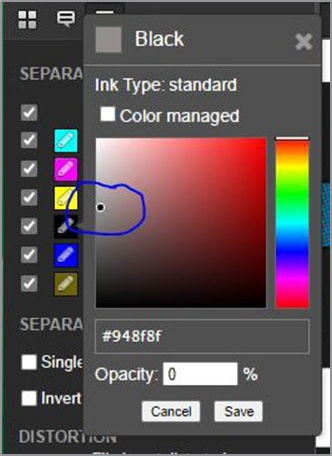
It’s also possible to change the color makeup of each of the separations, including any spot colors found in the job. To do so, click the Edit button located at the top of the separations window. A pencil icon will appear in each of the separation color blocks. Clicking the icon for Cyan, Magenta, Yellow, or Black will post a window noting that those colors are “managed.” To continue with changes, click the Color Managed box and a color picker will appear. Click to get an approximation of the color desired, and click Save.
The same steps can be used to modify the appearance of spot colors, except the Managed Color dialog will not appear. These changes are for appearance only and will not affect the final output. An example of the editing window can be seen here:
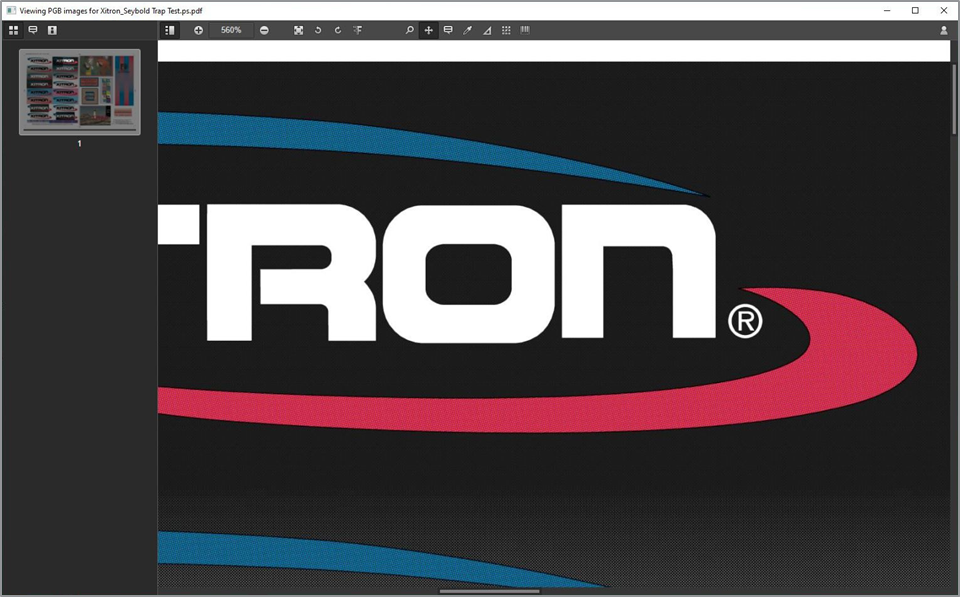
There may be times when it will be necessary to change the look or opacity of colors using the tools discussed above. For example, if a job contains areas of black ink adjoining colors that require a trap, it might be difficult to see the traps and verify their placement. An example is shown below:
Under these circumstances, cutting back the black ink in the viewer should help. Here is an example of the setting:
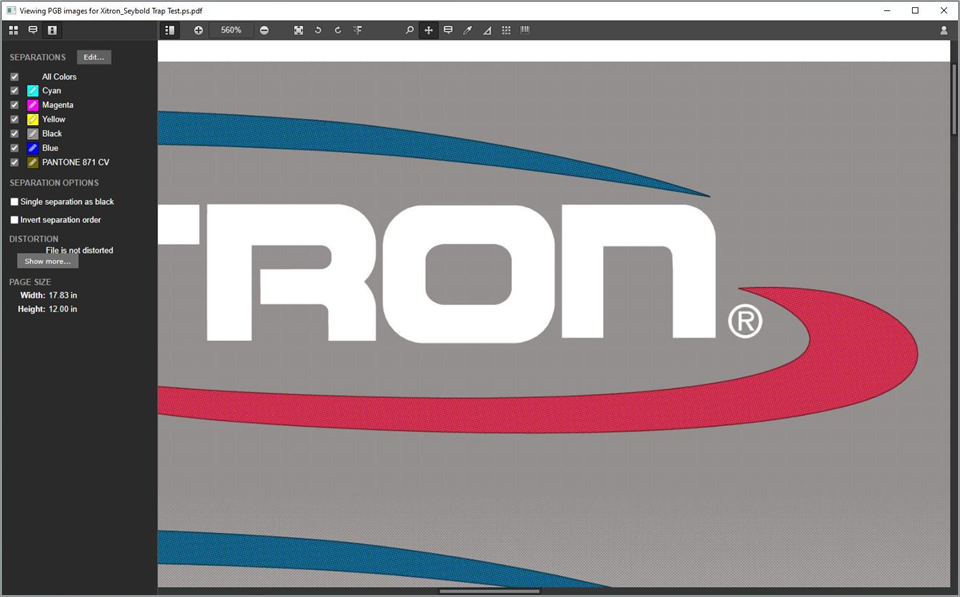
The result (shown below) is that it is much easier to see that the trap exists.
As mentioned earlier, these changes do not affect output. They only affect the display of the job in the viewer. To exit the Viewer, simply click the X in the upper right corner of the window.
Measure, Measure Halftones, and Preferences
The Measure tool can measure width, height, and an angled measurement. You may have to click on the preferences to change the units (mm, inches, etc.) to your preference. If you cannot see the account/preferences icon, extend the window frame to the right, until it appears.
The Measure Halftone button will give you the most information of all the tools. Here you can draw a marquee square (any size), and it will display the screen angles, line screen, and total ink coverage of that square.