
Once configured, logging in can be automatic and invisible to the user.
Until that point, you might want some help. It is all based on IP connections so you need to have a functioning network. The computers you have installed the Client applications on must actually see the K2 Server machine on the network. This is to say... the networking must work apart from the K2 Client and the K2 Server: just IP networking between the computers. That needs to be working before we can be sure it will "just work" for the user.
Involve IT if you must.
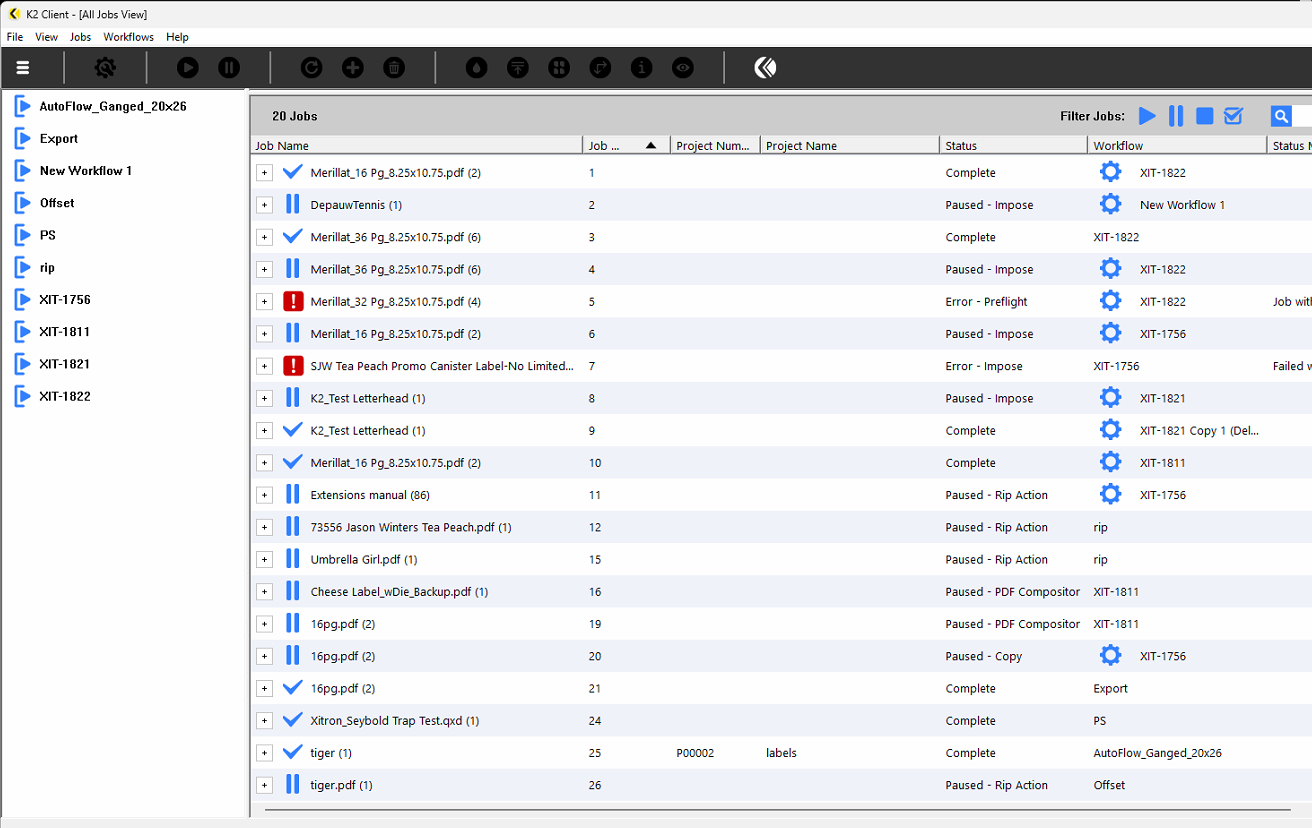
Here is (roughly) what the Client will look like on a successfully logged in system. You will see workflows to the left and jobs to the right. If you don't see that, you likely are not logged in.
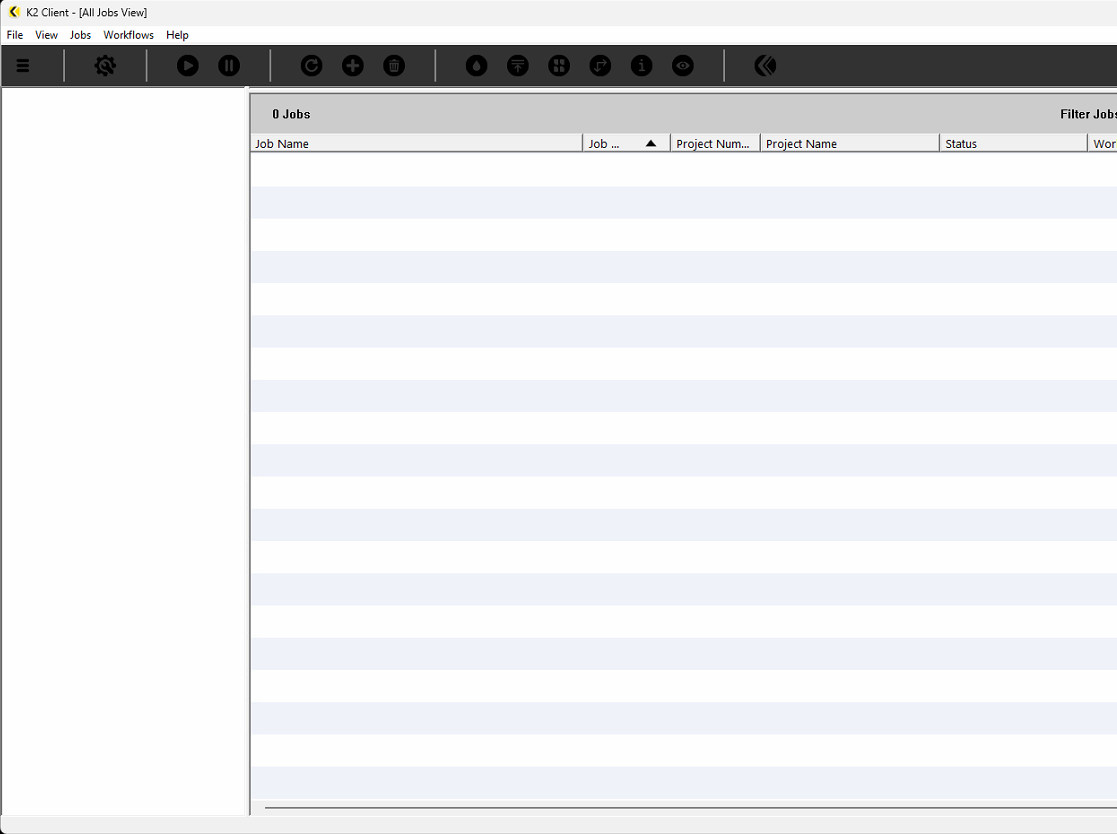
For comparison, here is what a logged out Client will look like:
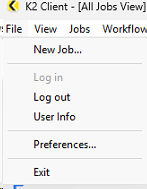
You can visit the File menu and check.
If Log in is grayed out and Log out is available, you are logged in.
If Log out is grayed out and Log in is available, you are logged out.
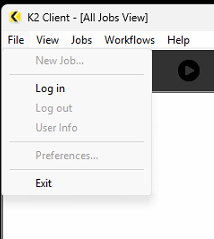
Choose Log in.
This dialog box will also appear the first time you run the Client:
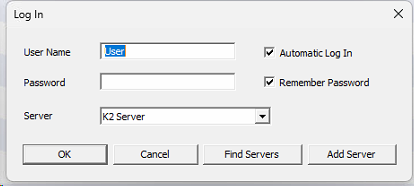
The User Name and Password must correspond to a user registered in the Server. Read about User Management in the Server here.
If you are comfortable saving the password into this Client (only one person is using this computer or only one account is being used to log in from this computer) then checking "Remember Password" means you won't have to type it in again.
If you don't want to see the log in screen at all then also check "Automatic Log In". The Client will transmit the User Name and Password automatically upon launch. Of course the Server needs to be running for log in to be successful.
The Server dropdown will show a list of Server names available on your network. If you have more than one you should change their names. You can find out how to do that here.
Find Servers will go out and look for Xitron Server applications and show them in the drop down list.
If you are having network discovery issues then you can click Add Server and put in the Server Name or put in the IP address to force the Client to try and connect directly to that.
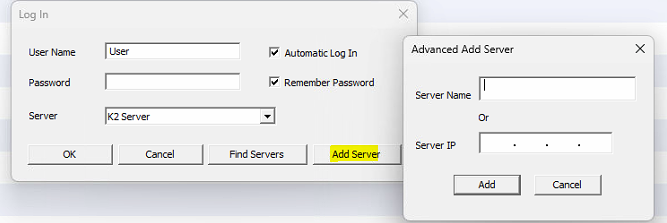
Once this is all configured correctly, when you put in your password and you have the dialog box looking roughly like this:
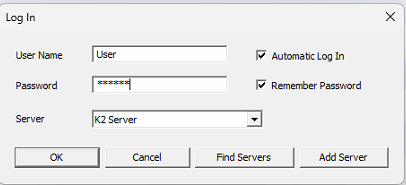
the user will then be in the situation where they don't ever have to know about logging in on a normal basis. The Client will just start up and log in as long as the Server is accessible on the network.