
In this chapter we will cover different workflows that you might set up depending on the equipment you have.
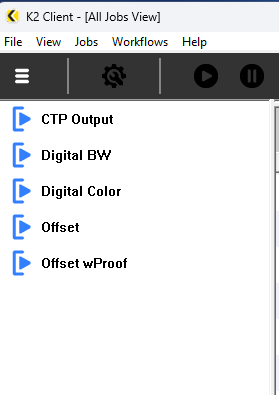
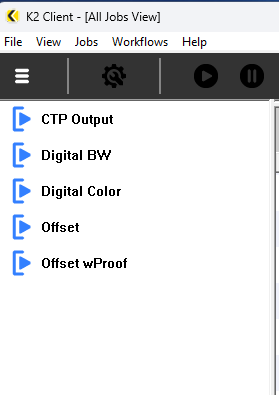
Here's the 5 workflows we will cover as seen in the Windows Client workflow list.
Automated workflow
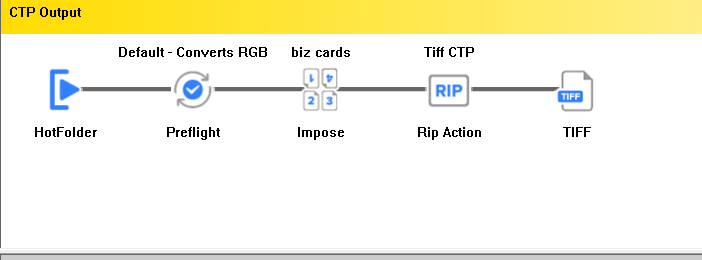
This workflow is intended for jobs that use a known configuration and are submitted as a single PDF per job. These can go all the way through to plate without intervention. The only time a user will be called upon to interact with jobs in this queue are in the case of failed preflight or processing errors.
There are no pauses. Which is because each Action has the possibility of a "Pause after" and they are all unchecked, like so: 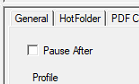
Preflight does it's checks and fixes, imposition does it's selected layout (in this example, business cards), the RIP makes screened 1-bit TIFFs and sends them on to the CTP device. The workflow can receive jobs via any of the input methods covered in the documentation. Watched folders or Manual Input for example.
Job Submission - assisted workflows
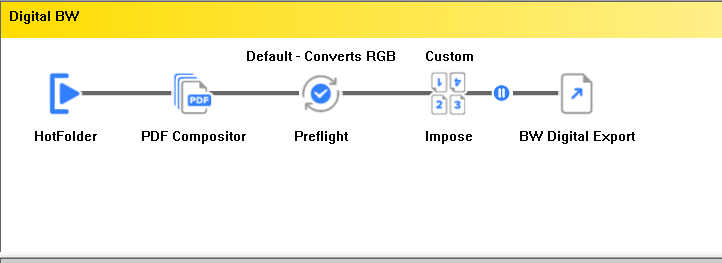
1. Digital BW. This workflow is for a monochrome digital printer. A job comes in with a few PDF files that need to be assembled and imposed for the monochrome digital device. PDF Compositor is necessary because we are going to be using the Job Submission UI. This workflow consists of HotFolder, Compositor, Preflight, Impose, and an Export. There is a pause after the imposition so that it could be proofed on screen. You can use the Preflight to check that the job is monochrome. The imposition is set to "Custom" because it will get set up during the job submission process. There is no RIP process because we are sending a preflighted, imposed PDF to a digital printer with it's own RIP.
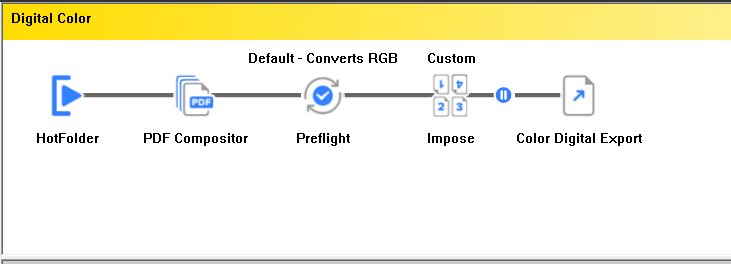
2. Digital Color. This is roughly the same as the Digital BW one but the export is going to a different location and the Preflight will look for color instead of monochrome. PDF compositor is here so that the Job Submission UI can be used and multiple PDFs could be used on a single imposition.
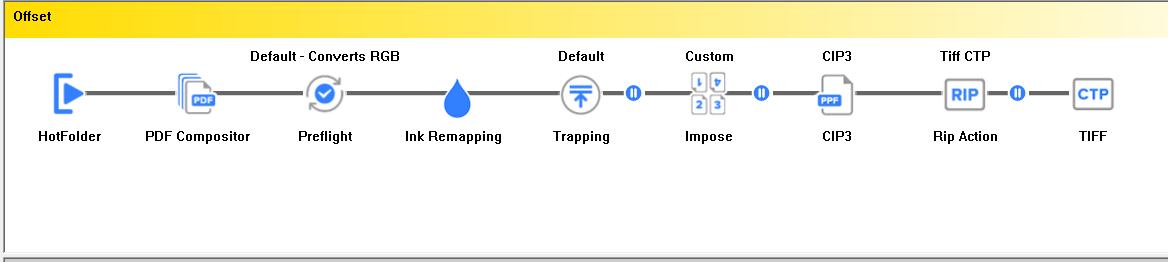
3. Offset. Here's a big, powerful workflow. It adds Ink Remapping, Trapping, CIP3 data for the press. All of these are documented here. There are pauses after Trapping, Imposition, and RIP so you can look at the Traps, look at the page positioning and marks, and examine the screened data if desired. These pauses are optional choices.
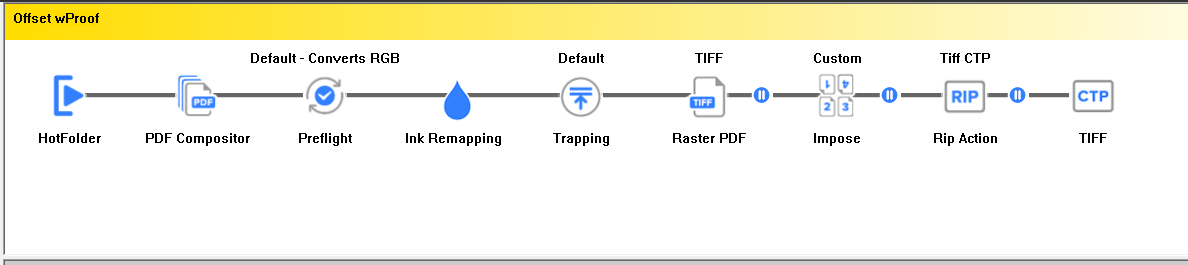
4. Offset wProof is a variant of the Offset workflow. It puts a Direct Output Action to drive an Epson proofer with K2 after the Trapping and before the imposition. You could also move it after the imposition depending on the size and format of your proofer.
Job Submission access.
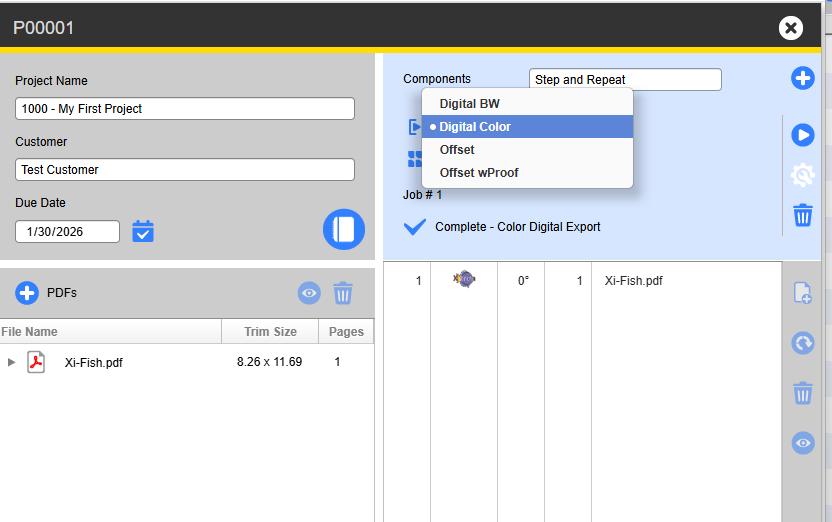
Because of the presence or absence of the Compositor in these workflows, the workflows that show up in the Mac and Windows Clients look like this:
And what you see in the Job Submission UI is this:
Read more about the Compositor