
K2 LogJam v 1.0.0
We collect a significant amount of data and have tools available to enhance the data flow as well as capture it.
When issues arise, the logs represent one of the fastest ways to receive assistance from Xitron's support team.
You might wonder how to collect all of the logfiles.
We have a utility that does exactly that. It's called LogJam. It is attached to this article.
Instructions
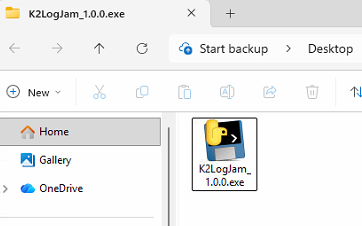
Run that utility by double clicking the app.
It will open a command prompt window and offer some instructions:
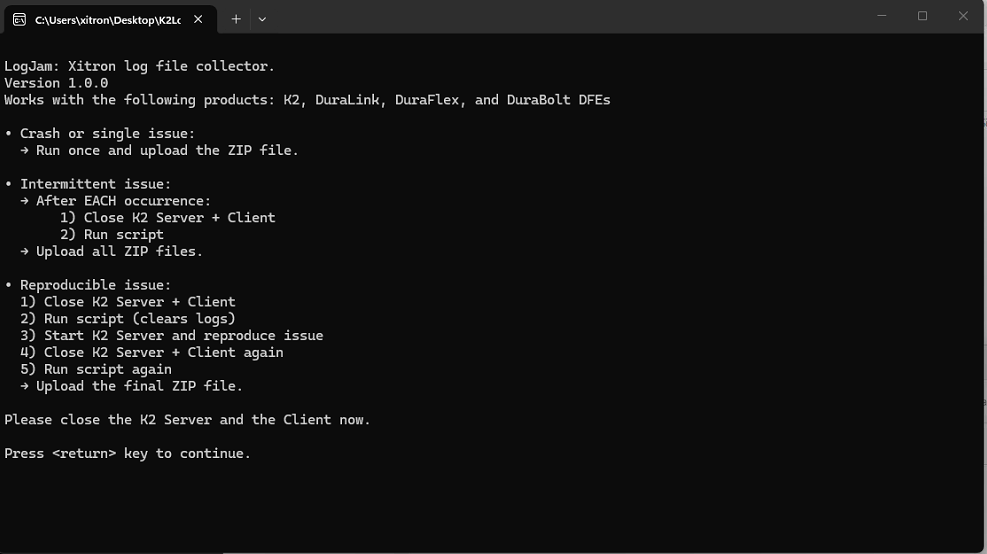
Those instructions will help you to collect logs useful to diagnose your specific issue.
Basically there are 3 ways to use LogJam.
• Crash or single issue:
→ Run LogJam once and upload the ZIP file.
• Intermittent issue:
→ After EACH occurrence:
1) Close Server + Client
2) Run LogJam
→ Upload all ZIP files.
• Reproducible issue:
1) Close Server + Client
2) Run LogJam (clears logs)
3) Start Server and reproduce issue
4) Close Server + Client again
5) Run LogJam again
→ Upload the final ZIP file. This will provide us with a set of logs that only show your issue.
Pick a location to save the zipped up logfiles to.
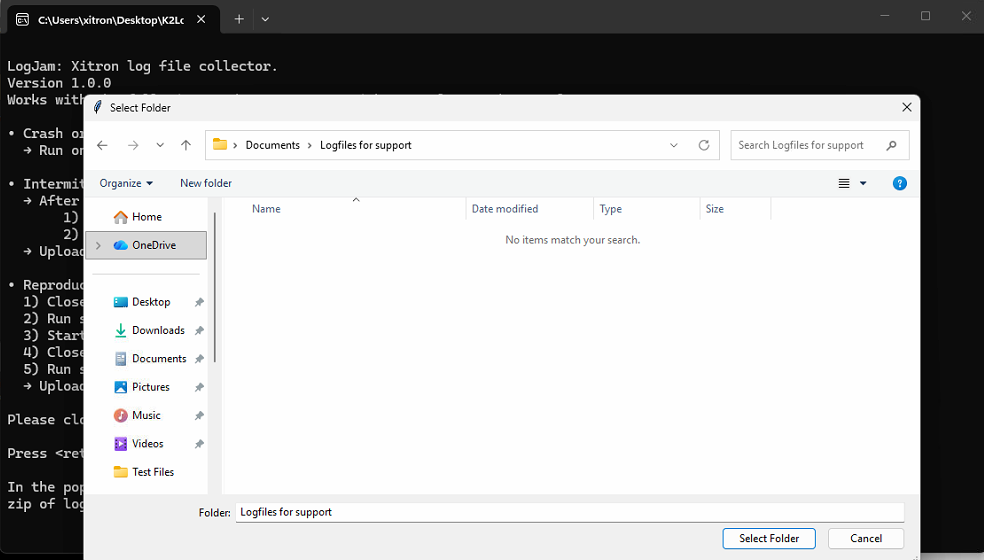
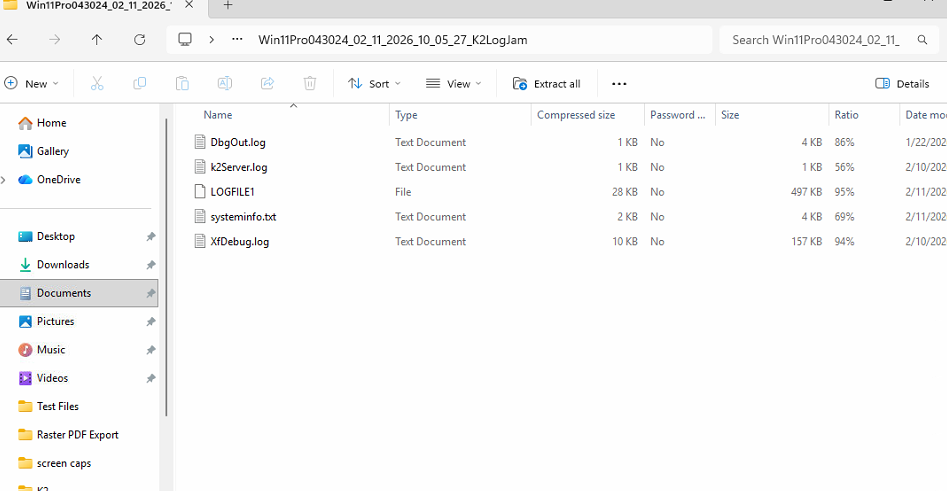
When you run the application successfully, it will make a ZIP file full of logs.
It will then offer to take you to our upload site so you can drop the files off. Be sure and let us know you have done this by opening a ticket. (Open tickets with Xitron Support here.)
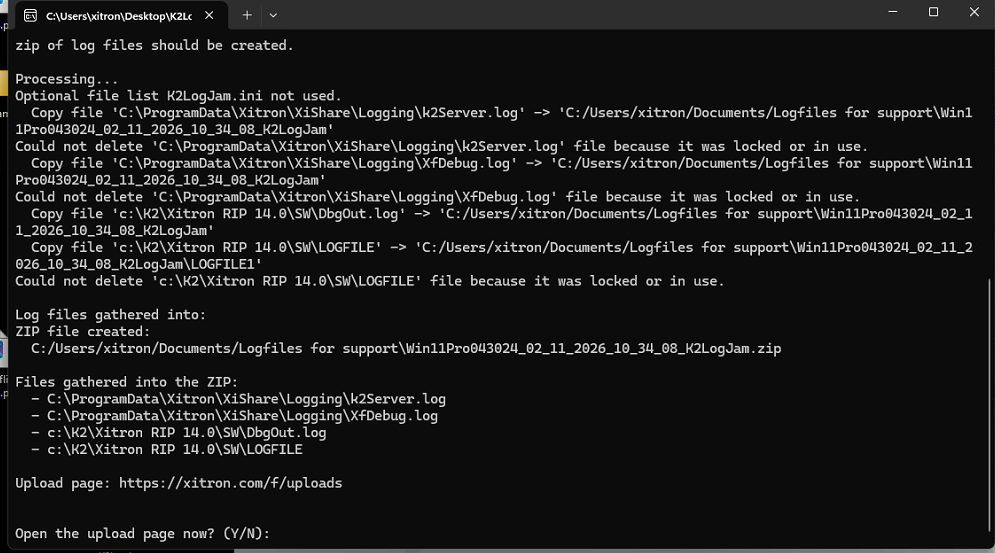 You can either send the ZIP file yourself or use our LogJam app to guide you to our upload site.
The ZIP file will look something like this inside:
Click here to learn how to ensure the logfiles have enough detail in them
Troubleshooting
If you run LogJam on a brand new system or on a system that had its logs deleted (either manually or by running LogJam with the system shutdown) you will get a message like this:
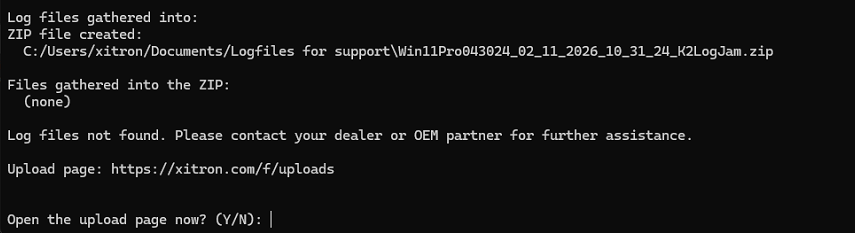
Just use the Launcher to start the system and you will get log files. Be sure and run the system until you get the problem you are trying to show us. The run LogJam again.