
K2 BackRest — v1.0.0
Backup and restore tool for Xitron K2 products.
What It Does
K2 BackRest collects your K2 configuration, workflow settings, and data files into a single timestamped ZIP archive that can be used to restore the configuration if you reinstall or upgrade to a new version of K2.
During backup you can choose whether large folders (Jobs and Archives) are included in the ZIP or copied to a separate subfolder beside it — keeping the ZIP small and fast while still preserving everything.
Restore extracts the ZIP back to the original file locations automatically.
Files in This Release
| File | Description |
|---|---|
K2_BackRest_1.0.0.exe | The application. Double-click to run. |
K2_BackRest.ini | User-editable. Add extra paths to include in every backup. Place this file in the same folder as the EXE. |
README.md | This file. |
Installation
No installation required. The EXE is self-contained. The INI file is optional and only used if you want to define additional files and folders to be backed up and restored.
How to Back Up
- Exit out of the K2 client and server.
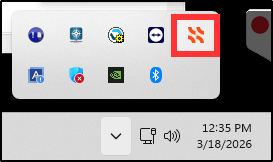
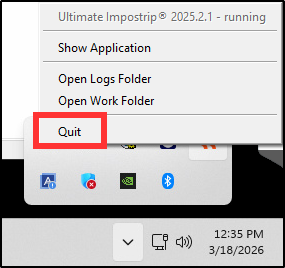
- Quit out of Impostrip's task tray application by right-clicking the icon, then selecting Quit.
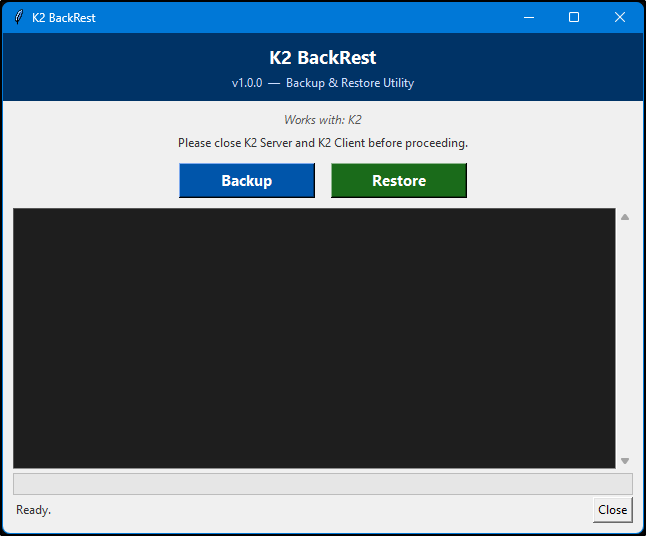
- Open the BackRest application.
- Click Backup.
- Browse to the folder where you want to save the backup (USB drive, network share, etc.).
- If a large folder (Jobs, Archives) is not found, a prompt will ask whether you have already moved or deleted it. The detected K2 installation path is shown so you can verify. Click Yes to continue without it, No to cancel.
- When complete, the log area shows a summary and a dialog confirms the output location.
Output structure:
<selected folder>\
  <Hostname>_<timestamp>_K2_BackRest_Backup\        ← backup folder
    <Hostname>_<timestamp>_K2_BackRest_Backup.zip   ← config files
    Jobs\                                           ← copied as-is (not compressed)
    Archives\                                       ← copied as-is (not compressed)
Jobs and Archives are always copied beside the ZIP rather than compressed into it, keeping the ZIP fast to create and the large folders accessible without extraction.
Best Practices
Fresh installation of K2
Once the installtion has completed and the system has been configured for production, run a backup using this tool so that you have an initial backup of the system settings for disaster recovery.
For reinstallation and upgrading
- If you are reinstalling or upgrading, you should perform a backup prior to uninstalling the existing installation of K2.
- In Programs and Features, locate K2 and uninstall the application.
- Rename the K2 installation folder (usually C:\K2) to K2_old. If you get a file in use error or can't find what is keeping the folder from being able to be renamed, try rebooting, then rename the folder.
- Install the desired version of K2.
- Open the BackRest application and follow the instructions below on how to restore.
How to Restore
- Without the K2 server, client application or Impostrip running, open the BackRest application.
- Click Restore.
- Browse to the backup folder (the folder containing the ZIP — e.g.
<Hostname>_<timestamp>_K2_BackRest_Backup). - Confirm the overwrite prompt — all software should be closed before restoring.
- Config files from the ZIP are restored to their original absolute paths.
- Jobs and Archives folders are moved from the backup folder back to their original K2 installation paths, replacing whatever is currently there.
Jobs and Archives at the destination are fully replaced on restore. The databases inside the ZIP reference the exact files in those folders — any mismatch (stale files, partial folders) would cause database/file inconsistencies, so a clean replacement is intentional.
What Gets Backed Up
The following items are collected by default (paths resolved for the detected K2 installation):
AppData — K2 INI files
K2Client.ini,K2Server.ini,XiWebServer.iniThumbnailer.ini,XILaunch.ini
AppData — Third-party integrations
- Ultimate Technographics / Impostrip folders
- Enfocus Prefs Folder
ProgramData
ProgramData\Xitron(full tree)ProgramData\Ultimate Technographics
K2 Install Root (e.g. C:\K2\)
Archives\— /large: prompted to copy separatelyJobs\— /large: prompted to copy separatelyWorkflows\Xitron RIP 14.0\
XiFlow Directory (e.g. C:\K2\K2\)
Config\,Resources\,htdocs\K2.actions.xml,K2.SCA.xml,K2.SysDev.xml,K2.wf.xml,K2.jobs
Customizing with K2_BackRest.ini
Open K2_BackRest.ini in any text editor to add extra paths. Changes take effect the next time the EXE is run — no recompile needed.
Example entries:
# Back up a custom folder (preserves subfolder structure in ZIP):
C:\K2\CustomSettings /ss

# Back up a single file:
C:\K2\license.lic

# Use a built-in variable:
$PROGRAMDATA$\MyVendor\Config /ss
Supported variables:
| Variable | Resolves to |
|---|---|
$APPDATA$ | C:\Users\<user>\AppData\Roaming |
$PROGRAMDATA$ | C:\ProgramData |
$RIPMANAGER$ | K2 XiFlow install directory (e.g. C:\K2\K2) |
$INSTALL_ROOT$ | Parent of XiFlow directory (e.g. C:\K2) |
Path modifiers:
| Modifier | Effect |
|---|---|
/ss | Recursive backup, preserves subfolder structure in ZIP |
/s | Recursive backup, flat layout |
Supported Products
- Xitron K2
Notes
- Run the tool as the same Windows user that runs the K2 software so
%APPDATA%paths resolve correctly. - The backup ZIP embeds a manifest (
_manifest.json) with the tool version, creation timestamp, hostname, and file count. - Restore uses the arcname in the ZIP to reconstruct the exact original file path — no manual path mapping needed.