
If you want to print data on your plate or output file, this RIP page feature will do that for you.
Here is a list of things you can output:
- Job name
- RIP Page Setup name
- Resolution
- Calibration
- Tone Curve
- Color Setup name
- screen angle
- Date & Time
- Scaling (distortion)
- Fixed custom text
Other options are
- use the incoming file name as the job name
- change the location and size of the text
- switch to shorter labels for the data e.g. "Cal:" vs "Calibration:"
NOTE: % (percent symbol) is a postscript comment. Nothing written on a line that begins with a % is executed.
What follows is the configurable part of the attached Page Feature.
%%%%%%% Customizable Section %%%%%%%
/BottomGap              20 mm def

/SlugLine               true def
/FontName               /Courier def
/FontSize               6 def
/Xoffset                10 mm def
/Yoffset                15 mm def
/Y2offset               2.5 mm def
%% Yoffset is measured downwards from the bottom of the image.
%% Y2offset is the spacing when line breaks are introduced.
%% To add a line break in the slugline remove the '%%' at
%% the beginning of the appropriate lines below where 'newline' appears.

/FixedText              (Your text here) def

/ShowFixedText          false def
/ShowJobName            false def
/UseFilenameAsJobName  	false def
/ShowPageSetupName      false def
/ShowResolution         false def
/ShowCalibration        true def
/ShowToneCurve          true def
/ShowColorSetupName     false def
/ShowDateTime           false def
/ShowFreqAngle          false def
/ShowScaling            true def

/ShortLabels            false def
%%%%%%%%%%%%%%%%%%%%%%%%%%%%%%%%%%%%%%%%%%%%%%%%%%%%%%%%%%%
This configuration above will give you a slug line with the calibration name, tone curve name, and will show the plate scaling in both the X and the Y directions.

If you would prefer to get something like this:

then remove the percents in front of one of the "newline" entries.
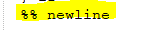
For example:
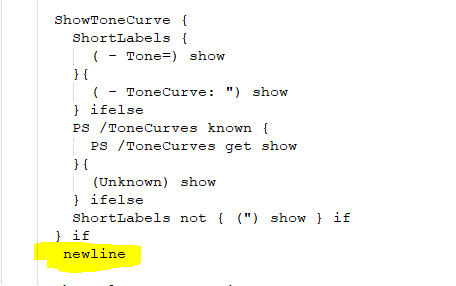
If you want to turn things on, change false to true. If you want to turn things off, change true to false.
I'll edit it to this:
%%%%%%% Customizable Section %%%%%%%
/BottomGap              20 mm def

/SlugLine               true def
/FontName               /Courier def
/FontSize               6 def
/Xoffset                10 mm def
/Yoffset                15 mm def
/Y2offset               2.5 mm def
%% Yoffset is measured downwards from the bottom of the image.
%% Y2offset is the spacing when line breaks are introduced.
%% To add a line break in the slugline remove the '%%' at
%% the beginning of the appropriate lines below where 'newline' appears.

/FixedText              (SpeedMaster Plates) def

/ShowFixedText          true def
/ShowJobName            true def
/UseFilenameAsJobName  	false def
/ShowPageSetupName      true def
/ShowResolution         true def
/ShowCalibration        true def
/ShowToneCurve          true def
/ShowColorSetupName     true def
/ShowDateTime           true def
/ShowFreqAngle          true def
/ShowScaling            true def

/ShortLabels            true def
%%%%%%%%%%%%%%%%%%%%%%%%%%%%%%%%%%%%%%%%%%%%%%%%%%%%%%%%%%%
here is the plate mark produced by the above configuration for the same job as before. (click to enlarge it)

Put the attached file into the RIP folder at SW/Page Features.
Select it by going to the Page Setup Manager, turn on Page Feature, and then choose it from the drop down menu.
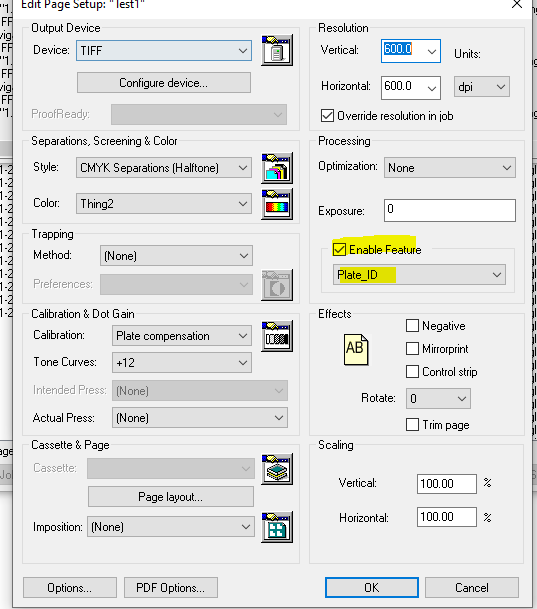
To edit the configuration use something like Notepad++