
NOTES:
- Xitron supports Impostrip for Windows. Because the imposition application is used as an "engine", this does not mean you can't use a Mac. Our Mac and Windows Client applications allow you to create and use imposition templates on whichever computer you choose. Impostrip runs on our K2 or Navigator computers but you can use it from Mac or Windows.
- Impostrip's database is linked to user profile. For each user everything is stored in “%appdata%\Ultimate Technographics\Ultimate Impostrip".
- Download the installer from the link below.
Ultimate_Impstrip_2023.3.1-win. Click on the “download” button at the top left corner of the window (do not click on the file name). We recommend that you use Google Chrome or Firefox for the download.
To activate your license for Ultimate Impostrip, follow the instructions below:
TO ACTIVATE YOUR LICENSE
- Launch Ultimate Impostrip®
- Click on HASP. In Product, select the product you want to run.

- Click on Host Fingerprint. A new window will pop-up. Save the c2v file (client2vendor) with the name of your company. Retrieve the c2v file and send it to us by REPLY ALL.

Impostrip Installation Guide
This guide walks through the installation of Ultimate Impostrip on Windows.
____________________
Pre‑Installation Checklist
Before running the installer:
- Close all running applications.
- Ensure you are logged in with administrative privileges.
- If using a HASP hardware dongle, do not plug it in until installation is complete.
Installation Procedure (Windows Installation)
Download the installer using the link.
- Extract the contents of the downloaded ZIP folder using 7-Zip.
Do not use the default Windows extraction utility.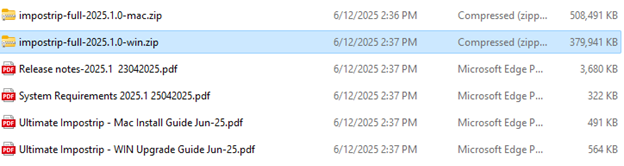
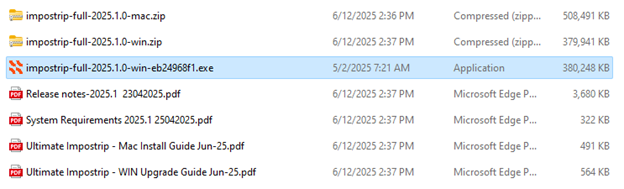
- To launch the Ultimate Impostrip Setup Wizard, run the Windows exe as an Administrator.
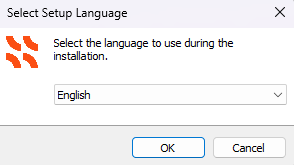
- Select the installer language.
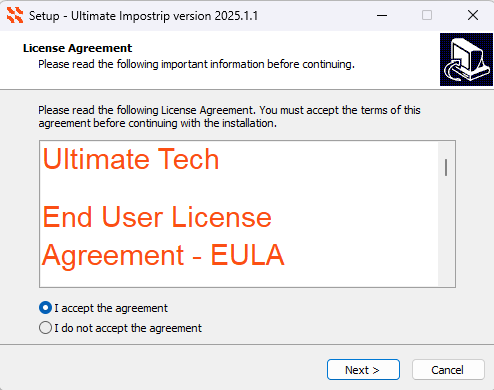
- Accept the End User License Agreement (EULA).
- Confirm the installation path:
- C:\Program Files\Ultimate Technographics\Ultimate Impostrip
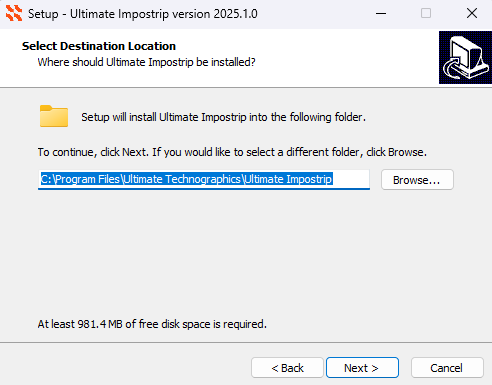
- C:\Program Files\Ultimate Technographics\Ultimate Impostrip
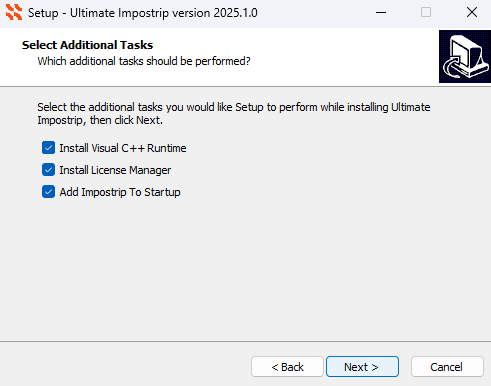
- Select Add Impostrip to Startup so the application launches automatically after a system reboot.
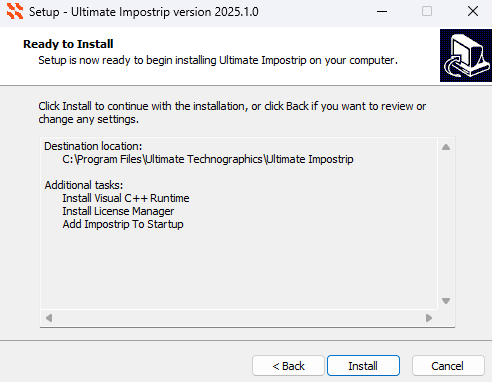
- Review the installation summary, then click Install to start the installation.
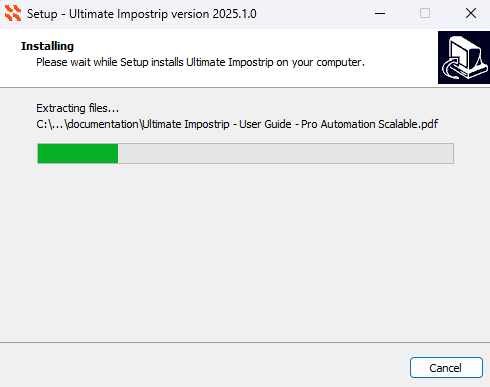
- Allow the installer to complete.
- Click Finish to exit the installer.
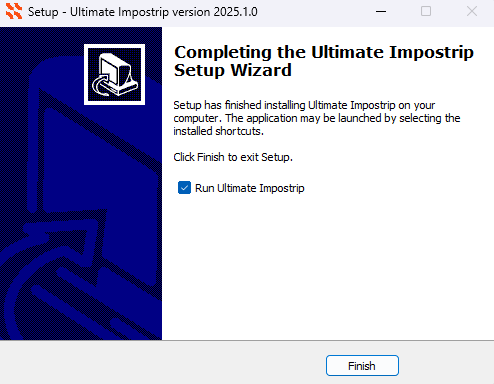
After installation:
- If Run Ultimate Impostrip was selected, the application starts in the background.
- Otherwise, launch it manually from the Start Menu.
- Open the tray and right-click on Impostrip and select “Show Application.”
- Proceed with licensing the software as well as XML for Redirection configuration outlined below.
License Activation
Ultimate Impostrip® supports HASP-based licensing, including Cloud, USB dongle, and offline C2V (Customer‑to‑Vendor) activation workflows.
C2V (Offline / File‑Based) Licensing
C2V licensing is used when the Impostrip system does not have direct internet access. The license is activated using a request file generated on the target system and a response file provided by Ultimate Tech.
- Launch Ultimate Impostrip on the target machine.
- Open Gear icon → LICENSE.
- Click on C2V icon to generate a C2V license request.
- Save the generated .c2v request file.
- Send the .c2v file to Ultimate Tech / Customer Service.
- You will receive a V2C license file in return.
- In LICENSE, click on “Load V2C” and apply the received .v2c file.
- Click Refresh License. The update is complete.
HASP USB (Dongle) License
- Plug in the HASP USB key after installation.
- Launch Ultimate Impostrip.
- Click Gear icon → Licensing.
- Apply or update the license as instructed by Ultimate Tech.
Cloud License
- Launch Ultimate Impostrip.
- Open Gear icon → Licensing.
- Activate the license using your Cloud credentials, either:
- Directly in the application, or
- Through a web browser (as instructed by Ultimate Tech).
Initial Configuration
General Preferences
Open Gear icon → Preferences and configure:
- Unit of Measure (mm, inch, points, etc.)
- Language
- Default Output Settings
- Automatic Backup Schedule
Gear icon (
 ), open Preferences → XML Configurator.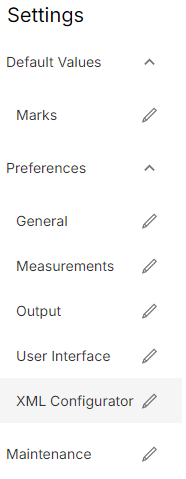
- Enable XML Ticket Input and Generate Audit XML File For Every Hotfolder Job
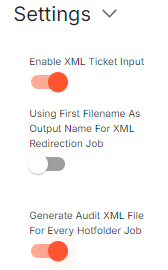
- Set path for XML Ticket Input Folder as:
C:\ProgramData\Xitron\XiShare\lmpositionXmllnput

- Set path for Audit Output Folder as:
C:\ProgramData\Xitron\XiShare\XmlAuditOut

- Save the configuration.
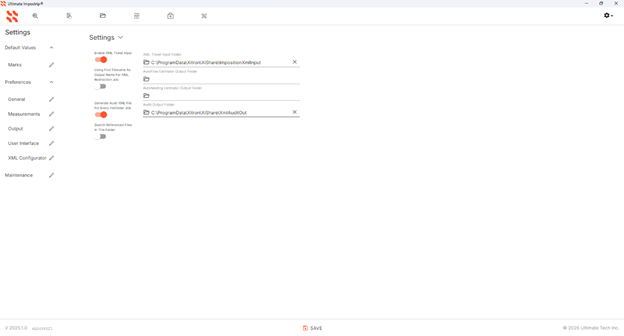
Now you can proceed to setting up workflows with integrated imposition.
Look here for details: Impose Workflow Action documentation
See also:
Ultimate-Tech's Impostrip installation guide
Installers:
Windows - Ultimate_Impstrip_2023.3.1-win
Release Notes:
Ultimate Impostrip 2023.3.1 Release Notes