
This guide tells how Xitron's support people handle the gathering of useful logs. This is intended for technically savvy support people. If you are an end user and this level of detail gives you vertigo, try this instead.
OEM Guide: Collecting Useful Logs from Navigator DFE
Purpose
This guide outlines the procedure for collecting complete and detailed logs from Navigator DFE for troubleshooting. It includes manual steps and automated options using LogJam or Postflight utilities.
1. Preparation
Before collecting logs:
- Close the Navigator Server.
- Delete any existing logs to ensure clean data:
%programdata%\Xitron\XiShare\logging\XfDebug.log
%programdata%\Xitron\XiShare\logging\clrip_0.log
%programdata%\Xitron\XiShare\logging\clrip_1.log
(And any other clrip_#.log files)
C:\Navigator\Navigator\NavigatorServer.log
2. Identify Logs to Collect
- For DuraFlex devices:
%programdata%\Xitron\XiShare\logging\DuraFlexSpooler.log - For DuraBolt or DuraCore:
%programdata%\Xitron\XiShare\logging\DuraBoltSpooler.log - For POD/JIT systems:
%programdata%\Xitron\XiShare\logging\XiSpooler.log - For duplex setups:
Collect from both PCs (RIP and Spooler logs). - Additional logs:
%programdata%\Xitron\XiShare\logging\XiService.log
%programdata%\Xitron\XiShare\logging\XiEvents.log
3. Enable Debug Logging
- Launch:
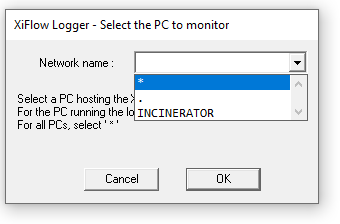
C:\Navigator\Navigator\XFDebugLog.exe - Make sure it's monitoring the correct PC
 Go to Configure > Set Levels…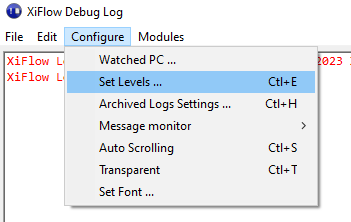
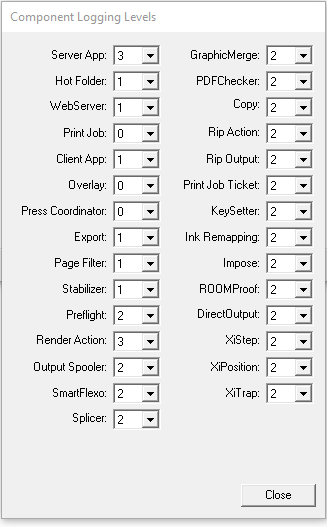
Set the following to Level 3:- Server App
- Render Action
- Output Spooler
- XiService
- XiEvents
- XiSpool
- <Any workflow action that may be giving you trouble>
- Go to Configure > Message Monitor
Set to Level 3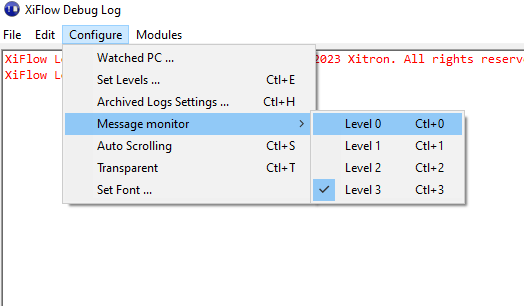
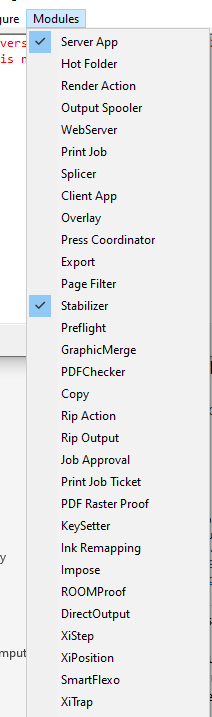
- Under Modules, select:
- Server App
- Render Action
- Output Spooler
- XiService
- XiEvents
- XiSpool
- <any workflow action that is giving you trouble>
4. Reproduce the Issue
- Keep XFDebugLog.exe running.
- Restart Navigator Server.
- Run a job that shows the issue.
5. Collect the Logs
After reproducing the issue, close Navigator Server and collect:
%programdata%\Xitron\XiShare\logging\XfDebug.log
%programdata%\Xitron\XiShare\logging\clrip_0.log to clrip_8.log
(what you actually have here depends on how many concurrent RIPs in your RIP farm.)
%programdata%\Xitron\XiShare\logging\DuraFlexSpooler.log (if applicable)
%programdata%\Xitron\XiShare\logging\DuraBoltSpooler.log (if applicable)
%programdata%\Xitron\XiShare\logging\XiService.log
%programdata%\Xitron\XiShare\logging\XiEvents.log
%programdata%\Xitron\XiShare\logging\XiSpooler.log (if applicable)
C:\Navigator\Navigator\NavigatorServer.log
6. Reset Logging
Reopen XFDebugLog.exe, and set all log levels and monitors back to Level 1.
7. Send to Support
- Zip all collected logs.
- Email to: XitronHelp@Xitron.com
Optional: Use LogJam or Postflight Scripts
These scripts gather all key logs and generate summaries (Postflight includes an HTML report).
Python needs to be running on the
LogJam
- Run from:
C:\Navigator\User Resources\Utilities\LogJam - Command:
py -3 LogJam.py
Postflight
- Run from:
C:\Navigator\User Resources\Utilities\Postflight - Command:
py -3 Postflight.py