
Overview
In certain situations, the “Make Default” button within the Job Editor may appear disabled (grayed out). This behavior is intentional and tied to how scaling values are handled within the system.
Issue
Users may observe that the “Make Default” option is unavailable when attempting to save job settings as the default configuration.
Cause
This occurs when scaling is defined using absolute values (for example, fixed dimensions such as width and height). While the interface allows users to enter absolute dimensions, these values are not stored directly by the system. Instead, all scaling is internally converted and maintained as a percentage-based value.
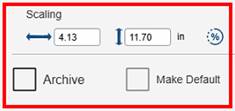 vs
vs 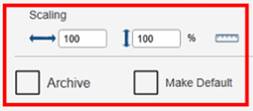
- Absolute scaling is only a user interface convenience
- The system does not support saving absolute dimensions as defaults
- The “Make Default” button is disabled to prevent confusion or incorrect expectations
Resolution
To enable the “Make Default” button:
1. Open the Job Editor
2. Locate the Scaling settings
3. Change the scaling method from absolute value to percentage
4. Once set to percentage, the “Make Default” button will become active
Behavior Explanation
The system is designed to store scaling in a consistent and predictable way. Since percentage-based scaling is the only supported format for saved defaults, allowing absolute values to be set as defaults would result in inconsistent or unexpected behavior.
Disabling the button in this mode ensures that:
- Users are not misled into thinking absolute values will persist
- Default settings remain consistent across all jobs
Important Considerations
- The “Make Default” function applies settings globally
- Any changes saved will affect all future jobs, not just the current one
- Settings adjusted for a specific job can unintentionally impact the entire workflow if saved as default
Recommendation
Use the “Make Default” function with caution.
Before applying it:
- Confirm that the current settings are appropriate for all future jobs
- Avoid using it for one-off or job-specific adjustments
Summary
- “Make Default” is disabled when scaling is set to absolute values
- The system only supports percentage-based scaling for defaults
- Switching to percentage will re-enable the button
- Saving defaults applies changes globally across all jobs