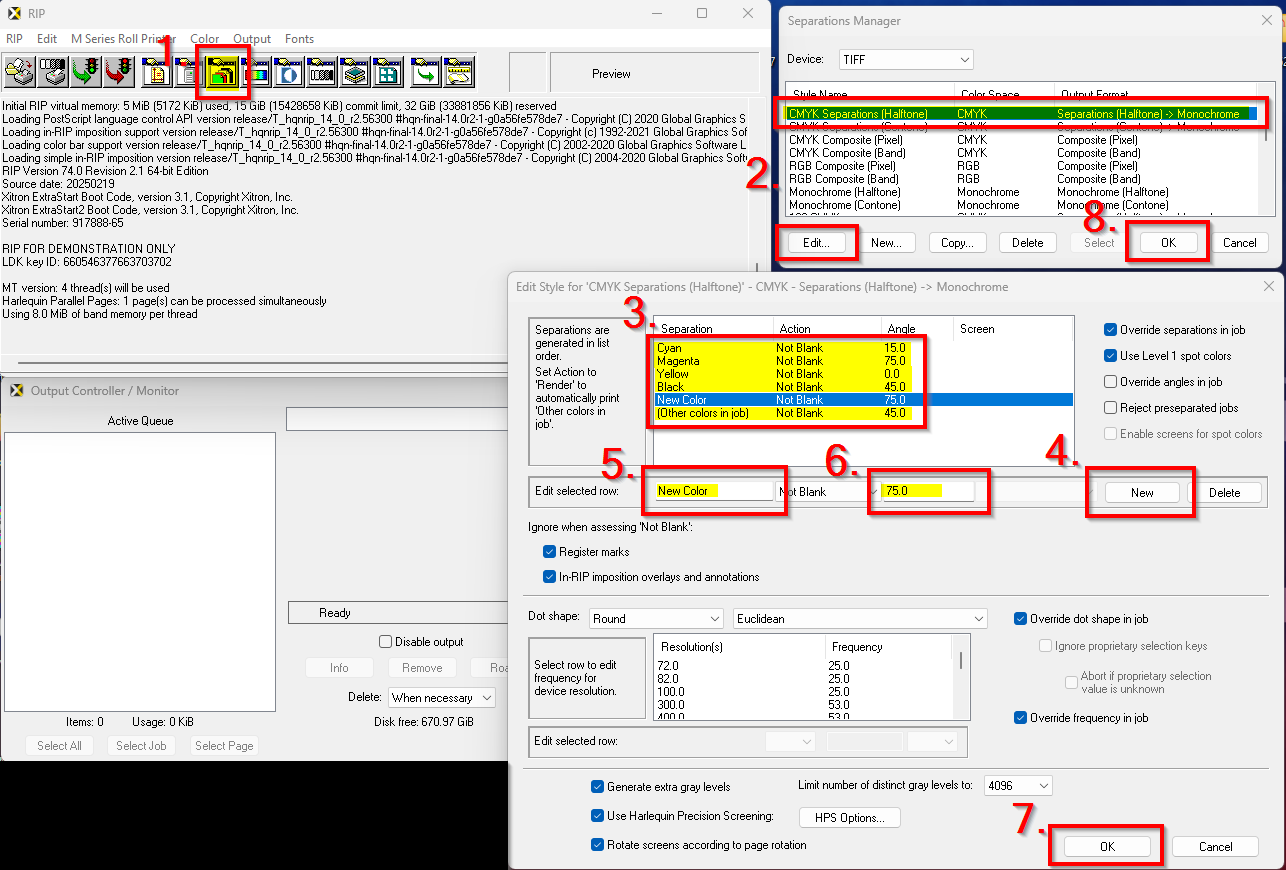
The purpose of this article is to explain how to change the screen angle of (Other colors in job) "Default" to not follow the Black Screen Angle. The (Other colors in job) separation which is the default value for spot colors in the Harlequin RIP, uses the angle of the separation that is directly above it in the separation list.
In order to get (Other colors in job) to use an angle different from the Black screen angle you must add a spot color to the separation style.
- Open the Separation Manager
- Select and edit an existing separation style or create a new separation style
- Note the screen angle for Cyan, Magenta, Yellow, Black and (Other colors in job)
Black and (Other colors in job) are usually the same angle - From Edit selected row click the New button. This create a new separation.
- You can now name the new Separation. We recommend that you name it something that will not be used as a normal spot color name.
- Change the angle to new desired Default Angle you want to use for spot colors.
- Click OK to save
- Click OK to save